Home › FX Trading School › Pro
Running an EA on a VPS for Reliable Execution
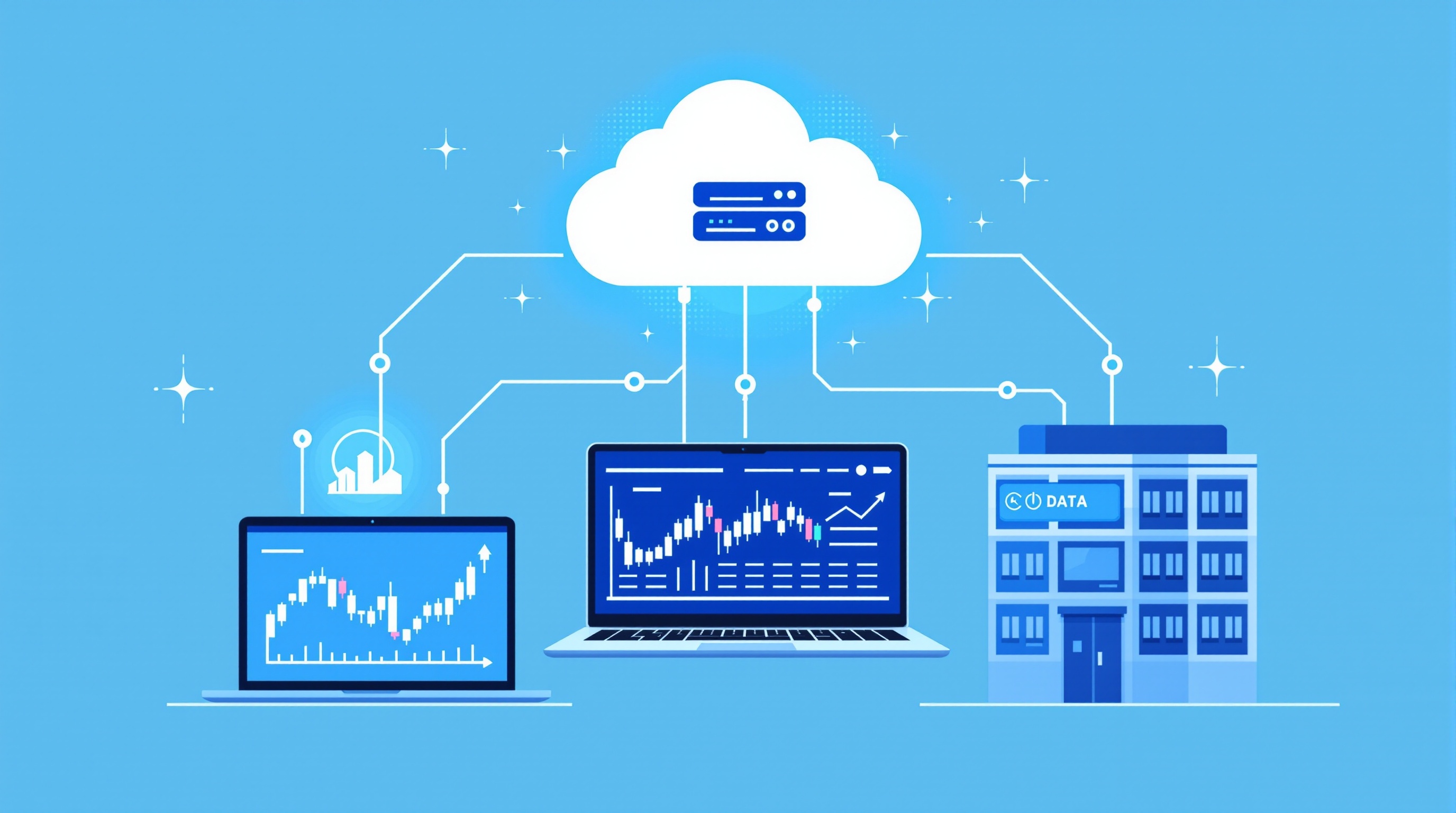
Running an EA on a VPS is the standard way to keep an automated strategy trading around the clock without depending on your home broadband, your laptop staying awake, or a power cut at the wrong moment. This lesson assumes you've already built and forward-tested your expert advisor (see Module 9 on strategy validation) and understand basic execution mechanics — now we're covering the infrastructure that keeps it running reliably.
Why a VPS Matters for Expert Advisors
An EA only works if it's actually running when the market moves. If your EA lives on your home PC and your internet drops, your laptop sleeps, or Windows decides to install an update mid-session, your trades don't get managed — stops don't trail, exits don't fire, and open positions sit unmanaged. A VPS (Virtual Private Server) is a small remote computer, rented by the month, that stays on 24/5 and runs your platform independently of your own hardware.
Key reasons traders move EAs to a VPS:
- Uptime: a proper VPS provider guarantees 99.9%+ uptime, far higher than a home connection.
- Consistency: no sleep mode, no forced reboots mid-trade, no laptop lid closing by accident.
- Proximity to the broker: a VPS hosted near your broker's trade servers can reduce network latency versus trading from home, especially if you're geographically far from their data centre.
- Independence: you can check on your EA from a phone or another PC without needing your own machine on.
None of this fixes a bad strategy. A VPS makes a sound EA run reliably — it doesn't make a losing system profitable. Trading remains risky, and most retail accounts lose money; infrastructure only removes one source of failure, not the risk of the strategy itself.
Choosing VPS Location and Specs
Location matters more than raw power for most EAs. Your goal is a short, stable path between your VPS and your broker's execution server.
Practical steps:
- Check where your broker's trade servers are hosted. Many brokers list this — for example, Pepperstone publishes its MetaTrader server list, showing server locations you can match against VPS data centres.
- Pick a VPS provider with a data centre in or near that same city or region (London and New York are common broker server hubs for UK-based accounts).
- Run a ping test from a trial VPS instance to your specific server before committing to a monthly plan.
Specs that actually matter for most EAs:
| Resource | Typical requirement | |---|---| | CPU | 1–2 cores is usually enough for a handful of EAs | | RAM | 2GB minimum, 4GB if running multiple charts/EAs | | Storage | SSD preferred; 20–40GB is plenty | | OS | Windows Server (for MetaTrader) or Linux with a Windows layer | | Network | Low-latency link to broker region, not just "fast broadband" |
Don't over-buy. A high-frequency scalper needs more headroom than a daily-timeframe swing EA. If you're unsure, start with an entry-level plan and upgrade only if you see missed ticks or platform lag in your logs.
Setting Up MetaTrader (or cTrader) on a VPS
The setup itself is mechanical, but skipping steps causes the most common failures.
1. Remote in using the VPS provider's Remote Desktop credentials. 2. Install your platform — MetaTrader 4/5, or cTrader if your broker (e.g. IG's own platform or an IG MT4 account) supports it. Use the installer from your broker's own site or portal, not a random download. 3. Log in with your live or demo account number, server name, and password exactly as given by your broker. 4. Attach your EA to the correct chart, timeframe, and symbol — a mismatch here is the single most common cause of "it's not trading." 5. Enable AutoTrading in the platform toolbar — this is easy to forget and silently stops all EA activity. 6. Set the VPS to auto-restart the platform after a reboot (most VPS dashboards have a scheduled task option) so a provider-side maintenance reboot doesn't leave your EA offline.
Test with a demo account first, running for at least a few days, before moving the same setup to a live account.
Monitoring, Alerts, and Failure Points
A VPS reduces failure risk — it doesn't eliminate it. Build a habit of checking in rather than assuming "it's fine because I set it up once."
What to monitor:
- Journal/Experts logs in MetaTrader for error messages (rejected orders, connection drops, invalid stops).
- Open positions vs expected state — does what's on the chart match what your EA should be doing?
- VPS resource usage — if CPU or RAM creeps toward 100%, your EA may start missing ticks.
- Broker connection status — a green signal-bar icon isn't proof of a healthy connection; check timestamps on recent ticks.
Set up alerts where possible:
- Push notifications from MetaTrader to your phone.
- Third-party monitoring tools that email or text you if the terminal disconnects.
- A simple daily calendar reminder to log in and eyeball the account, even briefly.
Treat a VPS like any critical piece of infrastructure — it needs occasional maintenance, not just a one-off install.
VPS Costs vs Broker-Provided Hosting
Some brokers offer free or discounted VPS hosting if you meet a trading volume or equity threshold. This can be worth pursuing, but check the actual terms rather than assuming "free" means "no strings."
- Broker-provided VPS: often free above a certain account size or monthly volume, usually hosted very close to the broker's own servers (a genuine latency advantage). Check current eligibility directly on the broker's site, since thresholds change.
- Third-party VPS: you pay monthly (typically low double-digit sums), but you choose the provider, location, and specs independently of any account size condition.
Whichever route you take, the VPS itself is a cost — factor it into your overall trading costs alongside spreads, commissions, and swaps. Use PipTax's cost tool at /audit.html to see how execution costs stack up across brokers so the VPS bill sits in context rather than being an afterthought.
Running an EA on a VPS: A Pre-Launch Checklist
Before you switch an EA from your own PC to a VPS permanently, run through this list:
- [ ] VPS data centre confirmed near broker's trade server location
- [ ] Platform installed directly from broker-provided installer
- [ ] EA attached to correct symbol, timeframe, and chart
- [ ] AutoTrading enabled and confirmed active
- [ ] Auto-restart configured for platform after any VPS reboot
- [ ] Demo run of at least several trading days completed with no errors
- [ ] Monitoring/alerts set up for disconnects or missed trades
- [ ] VPS cost logged as part of total trading costs
Running an EA on a VPS is one of the more mechanical upgrades you can make to your trading setup, but it rewards care at setup and ongoing attention — not a "set and forget" mindset. Get the location and configuration right, monitor it properly, and it removes a genuine point of failure from your system.
Where This Fits in Your Broader Setup
A VPS is infrastructure, not edge. It won't turn a mediocre EA into a good one, and it doesn't reduce your exposure to spreads, commissions, or slippage — those are separate cost factors you should already be comparing via /brokers/index.html and PipTax's methodology at /methodology.html. Once your VPS is stable, the next thing worth reviewing is how execution quality (fills, slippage, requotes) differs between brokers under real conditions — a natural follow-on from this module.
Key takeaways
- A VPS keeps an EA trading 24/5 independent of your home internet or PC, reducing (not eliminating) execution failure risk.
- Match your VPS location to your broker's trade server region — check server lists such as Pepperstone's MetaTrader servers before choosing a data centre.
- Size the VPS to your actual EA load: most setups need modest CPU/RAM, not a high-end plan.
- Test on demo for several days, confirm AutoTrading is enabled, and set the platform to auto-restart after any VPS reboot.
- Monitor logs and set up disconnect alerts — a VPS is infrastructure that still needs occasional attention.
- Treat VPS fees as part of total trading costs alongside spreads and commissions; compare these via PipTax's cost tool.
Frequently asked questions
- Do I need a VPS to run an EA at all?
- No — you can run an EA on your own PC if it stays on and connected 24/5. A VPS becomes worthwhile once you want uptime independent of your home internet and hardware, or you want your platform closer to your broker's servers.
- Will a VPS improve my EA's profitability?
- Not directly. A VPS improves reliability and, in some cases, reduces latency to the broker's server. It doesn't change your strategy's edge, spreads, commissions, or swap costs — those need separate review, ideally via PipTax's cost tool.
- Can I run MetaTrader and cTrader on the same VPS?
- Yes, provided the VPS has enough RAM and CPU headroom. Running multiple platforms and multiple EAs on one low-spec VPS is a common cause of missed ticks, so size the plan to your actual usage.
- How do I know if my VPS is too far from my broker's server?
- Run a ping test from the VPS to the broker's trade server address before committing. High or inconsistent ping (compared to what your broker documents as typical) suggests a location mismatch worth fixing before going live.
- Is broker-provided VPS hosting worth using instead of a third-party one?
- It can be, especially for latency, since it's often hosted very close to the broker's own infrastructure. Check the eligibility terms (account size or volume thresholds) directly with the broker, as these vary and change over time.