Pepperstone Demo to Live: Moving Your MetaTrader Account
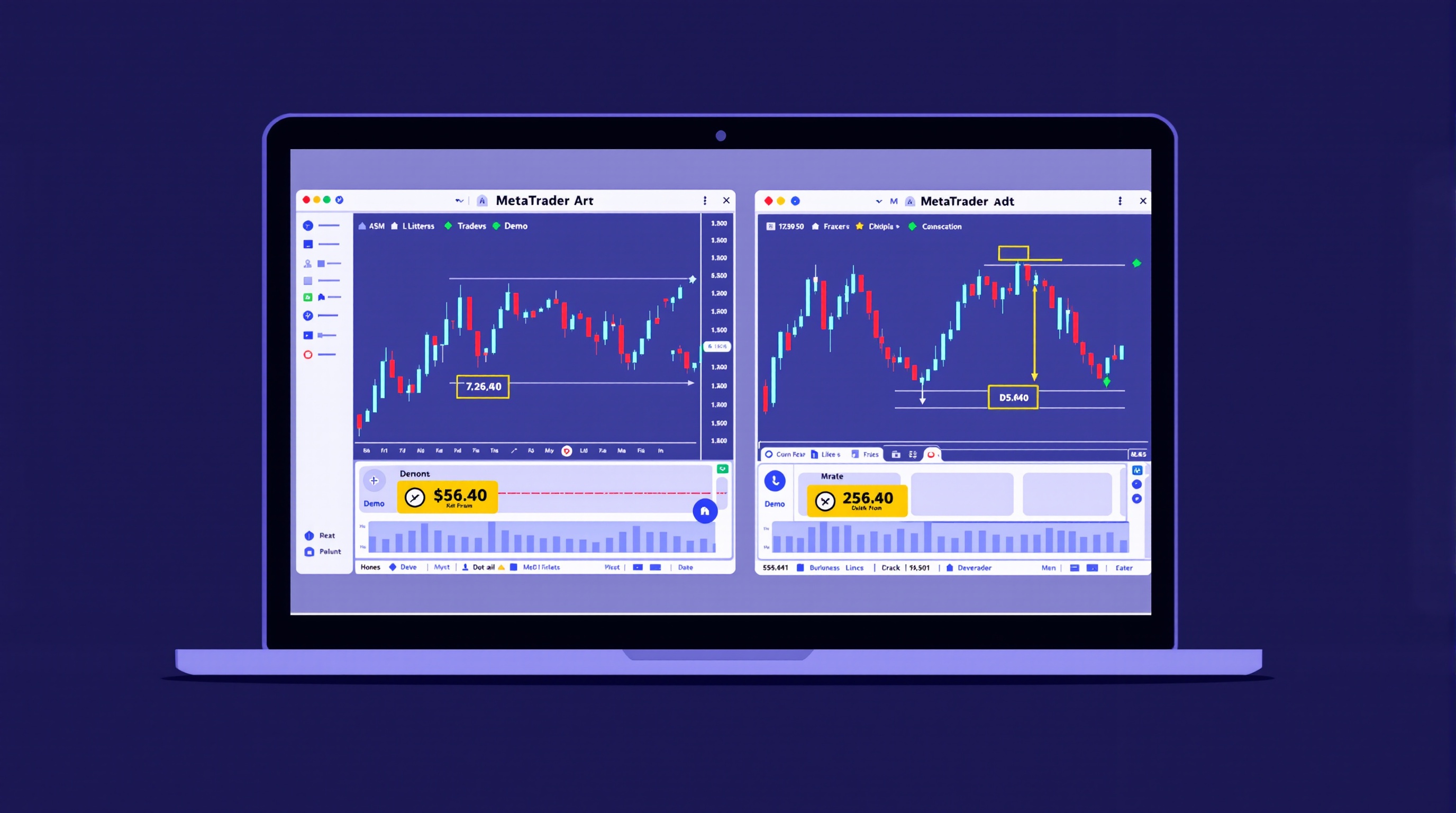
Moving from a Pepperstone demo to a live MetaTrader account is a simple process on paper, but it's easy to trip up on small details — the wrong server, an unexpected leverage setting, or an EA that behaves differently once real money and real execution are involved. This guide walks through the actual steps, in order, so your first live trade isn't a surprise.
Pepperstone is FCA-regulated for UK clients and supports MetaTrader, which is exactly why so many traders demo on it before going live. But demo and live are genuinely separate environments under the hood, and treating the switch as a proper checklist — not just "type in new login details" — will save you a stressful first week.
Why demo and live are not the same account
Your Pepperstone demo account lives on a demo server, with its own login number, password, and balance. When you open a live account, Pepperstone issues a completely new set of credentials on a live server. Nothing about your demo — balance, open trades, history, or even your saved chart templates on that server — moves across automatically.
This matters for three practical reasons:
- Execution can differ. Demo servers are designed to simulate trading conditions, but live servers reflect actual market liquidity and order routing. Fills, slippage, and requotes (where applicable) may not behave identically.
- Spreads and commissions on demo are indicative. They give you a feel for the platform, not a guarantee of live pricing. Always verify current live costs before trading real money.
- Your account settings reset. Leverage, base currency, and account type are chosen fresh when you open the live account — they don't inherit from demo.
Understanding this upfront stops you from assuming "it worked on demo, so it'll work identically live" — a common and avoidable source of early live-trading confusion.
Step 1: Open your live Pepperstone account
Before touching MetaTrader, you need a live trading account with Pepperstone itself:
1. Go to Pepperstone's own site (not the demo download page) and start a live account application. 2. Complete identity verification (ID and proof of address) as required for FCA-regulated brokers. 3. Choose your account type, base currency, and platform (MT4 or MT5) — confirm current availability on Pepperstone's site, as offerings can change. 4. Select your leverage. Remember that for UK retail clients, FCA rules cap leverage at 30:1 on major FX pairs, regardless of what non-UK entities may offer. 5. Fund the account via your chosen payment method.
Once approved, Pepperstone will email your live MT4 or MT5 login number, password, and — critically — the server name. Keep this email; you'll need the server name in the next step.
Step 2: Connect MetaTrader to your live server
Your existing MetaTrader terminal (the one you used for demo) can host both accounts — you don't need a separate download for live.
- Open MetaTrader and go to File > Login to Trade Account.
- Enter your live login number and password exactly as sent.
- In the server field, search for your specific Pepperstone live server name rather than picking the first result — demo and live servers are named differently, and picking the wrong one will fail to connect.
- Confirm "Save password" only on a device you control.
If you trade both demo and live for comparison, you can switch between them from the same terminal using File > Login to Trade Account each time — no need to reinstall anything.
Step 3: Re-check your account settings before trading
Before placing a single live trade, verify these settings match what you intended when applying:
| Setting | Where to check | Why it matters | |---|---|---| | Leverage | Terminal > right-click account > Properties, or client portal | Wrong leverage changes your margin requirements significantly | | Base currency | Client portal account summary | Affects how P&L and swaps are calculated | | Account type | Client portal | Determines commission structure and spread type | | Server/platform | Terminal login screen | Confirms you're on the correct live environment |
If anything looks wrong, contact Pepperstone support before funding further or trading — it's far easier to fix at this stage than after a position is open.
Step 4: Re-test your strategy and EAs on the live server
If you ran an Expert Advisor or custom indicators on demo, don't assume they'll behave identically live:
- Re-attach EAs to charts on the live account and check the "Algo Trading" button is enabled.
- Confirm the EA's input settings (lot size, risk %, magic number) are correct for a live balance — demo settings are sometimes left at test values.
- Watch the first few trades manually rather than leaving it fully unattended.
- Check that the symbol names match exactly — some brokers use suffixes (e.g. ".a" or "m") that can differ between demo and live, which breaks EAs referencing hardcoded symbol names.
Manual traders should do a similar dry run: place a small, deliberate trade and confirm the fill, spread, and stop-loss/take-profit behaviour match what you expect from the demo experience.
Step 5: Check real costs before scaling up
This is the step traders skip and later regret. Demo pricing is a reasonable guide, but your actual live costs — spread, commission, and swaps — depend on your specific account type and current market conditions.
- Use PipTax's cost tool at /audit.html to check real, current spreads and commissions for your Pepperstone account type before increasing position size.
- Compare against other FCA-regulated brokers, such as IG, using the broker comparison page at /brokers/index.html if you're weighing execution models or platform choice.
- Review swap rates on /rates.html if you plan to hold positions overnight.
Starting live with a smaller balance and reduced size for the first week gives you room to catch any discrepancy — in spreads, execution, or EA behaviour — before it affects meaningful capital.
Bringing it together
The Pepperstone demo to live transition isn't complicated, but it rewards patience: separate credentials, a fresh account with its own settings, and a live server that deserves its own quick verification pass before you trade full size. Confirm your leverage, base currency, and platform choice; re-test EAs on the live server; and check real costs with PipTax's cost tool rather than assuming demo pricing carried over. Trading live involves real risk of loss, so treat this first week as a controlled test, not a full-speed launch — and if you're still deciding between MetaTrader setups or brokers, the PipTax school has further guides to work through at your own pace.
Key takeaways
- Moving Pepperstone demo to live doesn't carry your demo trade history or open positions across — you start fresh, so treat the switch as a proper checklist, not a formality
- Your live MT4/MT5 login, password and server name will differ from your demo, so download them from Pepperstone's client area rather than guessing
- Confirm your account type, base currency and leverage before your first live trade, since these are set at account opening and are harder to change afterwards
- Re-test your EAs and indicators on the live server, because execution and available symbols can differ slightly from demo
- Use PipTax's cost tool to check real spreads and commissions on your live account rather than assuming demo pricing matches
- Start with a small live balance and reduced position sizing for the first week to confirm everything behaves as expected
Frequently asked questions
- Does my Pepperstone demo trade history carry over to my live account?
- No. Demo and live accounts are entirely separate in MetaTrader. Your demo balance, open trades, and history stay on the demo server. Your live account starts at zero with whatever balance you deposit.
- Will my EAs and indicators work the same on a live Pepperstone account?
- They should function the same way, but always re-attach and re-test them on the live server first. Execution speed, spreads, and available symbols can differ slightly from demo conditions, so confirm behaviour before trading full size.
- Can I use the same MetaTrader terminal for demo and live?
- Yes, one MT4 or MT5 terminal can hold multiple accounts, including demo and live side by side. You just log in and out of each using its own login number, password, and server name.
- How do I find my live account's server name in MetaTrader?
- Pepperstone sends this in your live account welcome email, and it's also visible in the client portal. In the terminal, go to File > Login to Trade Account and search for the exact server name rather than typing it from memory.
- Should I check spreads again once I go live?
- Yes. Demo conditions can be indicative rather than identical to live pricing. Use PipTax's cost tool at /audit.html to check real spreads and commissions for your account type before trading with real money.
- Is MT4 or MT5 better when moving from demo to live with Pepperstone?
- That depends on your strategy and instrument access rather than one being universally better. Confirm which platforms and account types Pepperstone currently offers on their own site, and check execution and cost differences using PipTax's broker comparison page.