How to Set Up Multiple Broker Accounts in One MetaTrader 4
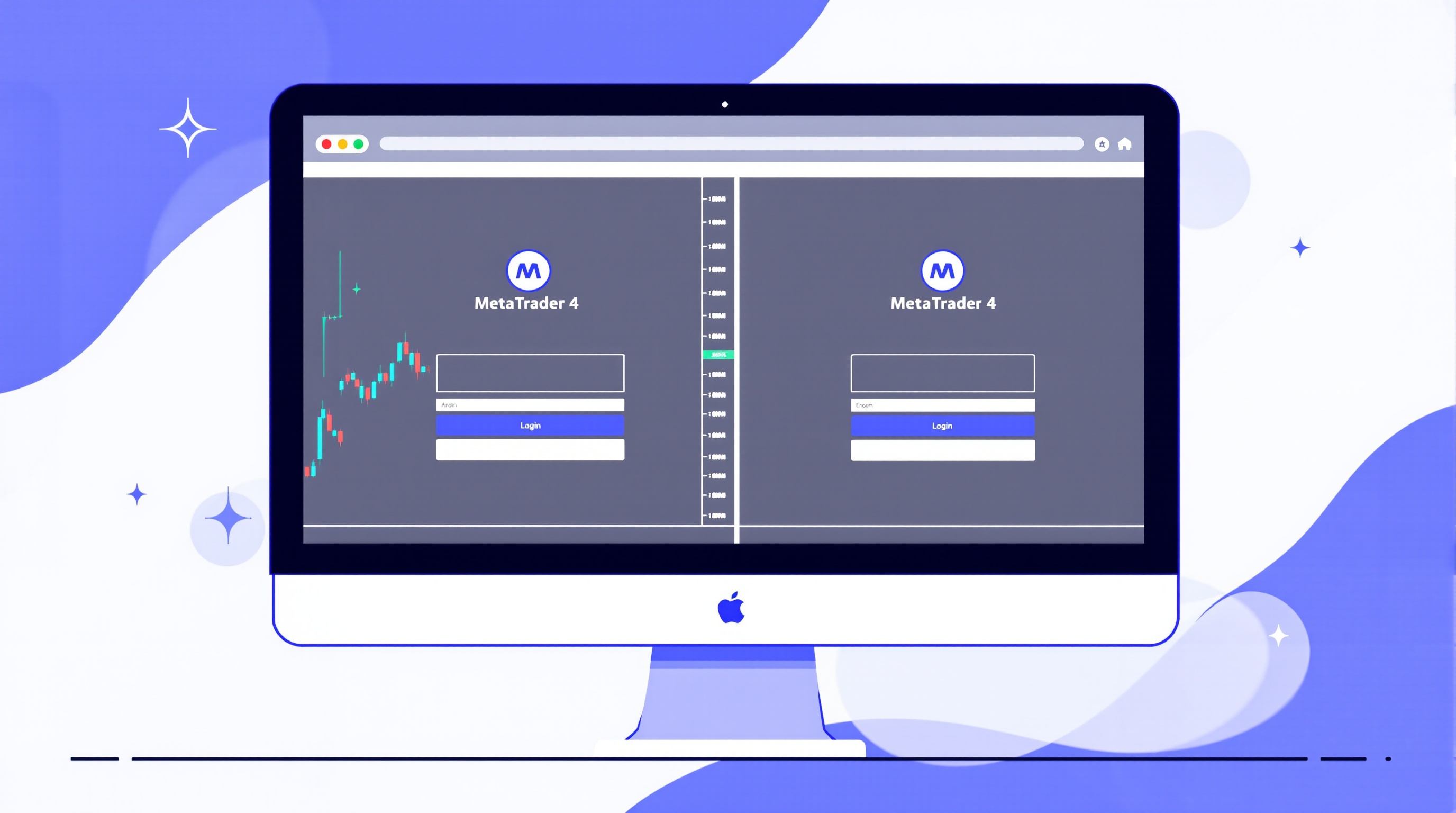
Setting up multiple broker accounts in one MetaTrader 4 setup is a common goal for traders who want to compare execution, test strategies across venues, or simply keep a backup account ready. It's entirely doable — you just need to understand that MT4 is built around a single broker connection per terminal, so "one MetaTrader 4" really means running several separate MT4 installs side by side on your machine.
This guide walks through the practical steps, using Pepperstone and IG as real, FCA-regulated examples of how the process looks in the real world.
Why MT4 Only Connects to One Broker Per Terminal
MetaTrader 4 isn't a universal trading app that lets you pick a broker from a dropdown. Each MT4 build is compiled and distributed by an individual broker, with that broker's price servers, symbol list and trading rules embedded in it. When you download MT4 from Pepperstone, you're getting Pepperstone's version of the platform pointing at Pepperstone's servers. IG's MT4 download works the same way for IG's servers.
This means:
- One terminal window = one broker connection at any given moment.
- You can log out and log into a different broker's server in the same terminal, but you can't have two live connections open in a single window.
- To genuinely run two brokers simultaneously, you need two separate MT4 installations.
This is by design, not a bug — it keeps each broker's pricing, execution and account data cleanly separated. Understanding this early saves confusion later when symbols look different or an EA won't behave the same way twice.
Step 1: Download Each Broker's Own MT4 Installer
Go to each broker's own platforms page and download their specific MT4 installer rather than a generic one from the MetaQuotes site, since broker-branded installers often pre-configure the correct server list.
- Visit Pepperstone's platform download page for their MT4 installer.
- Visit IG's platform page and confirm whether they currently offer MT4, MT5, or their own IG platform — availability can change, so always check directly.
- Save each installer with a clear filename so you don't mix them up.
Always confirm live platform availability, account types and costs on the broker's own website before opening an account — don't rely on older articles or forum posts, as brokers do update their platform offerings.
Step 2: Install Each Broker Into Its Own Folder
When installing, don't accept the default folder every time — each install will try to use a generic path like C:\Program Files\MetaTrader 4, which causes the second install to simply overwrite or reuse the first.
- Install broker one into a clearly named folder, e.g.
MT4-Pepperstone. - Install broker two into a separate folder, e.g.
MT4-IG. - Repeat for any additional brokers, keeping folder names unambiguous.
This keeps each terminal's data files, templates, custom indicators and Expert Advisors completely separate, so a setting or EA change in one doesn't touch the other.
Step 3: Log In With the Correct Server Name
Every MT4 account comes with a specific server name, provided in your welcome email or shown on first login. Inside the terminal, go to File > Login to Trade Account and enter:
- Your account number
- Your password
- The exact server name (e.g. something like
Pepperstone-Live01or an IG equivalent)
Getting the server name wrong is the single most common login error — it usually means you're pointing at the wrong broker or the wrong account type (demo vs live). If you can't locate it, your broker's support team can confirm it quickly.
Running Multiple Terminals Side by Side
Once both installs are logged in, you can arrange them on screen simultaneously — useful for comparing:
| What to compare | Why it matters | |---|---| | Live spread on major pairs | Real cost of entering and exiting trades | | Execution speed/slippage | Affects scalping and news-trading strategies | | Swap rates on overnight positions | Impacts holding costs for longer-term trades | | Symbol naming and minimum lot size | Can differ, affecting EA compatibility |
Don't rely on memory or screenshots for cost comparisons — use PipTax's cost tool to check current spreads and commissions systematically, since these figures change and shouldn't be assumed static from one visit to the next.
Keeping Accounts Organised and Avoiding Mistakes
Running multiple broker accounts adds real operational risk if you lose track of which terminal is which. Build simple habits from day one:
- Rename shortcuts clearly, e.g. "MT4 – Pepperstone Live" vs "MT4 – IG Demo".
- Change chart background colours per terminal as a visual cue.
- Keep a simple spreadsheet logging account numbers, servers, and purpose (demo test, live comparison, backup).
- Never assume identical lot sizing or margin requirements across brokers — check each broker's contract specifications.
- Test any Expert Advisor on demo across each broker separately before going live, since execution differences can change results.
Remember too that all FCA-regulated brokers offering retail forex trading are subject to the 30:1 leverage cap on major currency pairs — this applies broker-wide and isn't something you can bypass by opening more accounts.
Conclusion: Multiple Broker Accounts in One MetaTrader 4, Done Properly
Getting multiple broker accounts in one MetaTrader 4 setup working smoothly comes down to treating each broker as its own separate install — separate download, separate folder, separate server login — rather than trying to force one terminal to serve two masters. Once you've got Pepperstone and IG (or any other FCA-regulated brokers) running in their own clearly labelled terminals, you're in a strong position to genuinely compare execution and costs rather than guessing. Before committing real money to any comparison, run the numbers through PipTax's cost tool and check the brokers page for up-to-date details straight from each provider.
Trading carries risk, and running multiple accounts doesn't reduce that — it simply gives you better information to make cost and execution decisions with your eyes open.
Key takeaways
- You can run multiple broker accounts in one MetaTrader 4 install, but each broker usually needs its own MT4 terminal folder or a separate portable installation to avoid server conflicts
- Every MT4 broker connects via a specific 'server' name (e.g. a Pepperstone or IG server) found on the broker's platform download page or in your welcome email
- Running several terminals side by side is the standard way to compare live execution, spreads and slippage between brokers such as Pepperstone and IG
- Keep demo and live accounts clearly labelled and never assume two brokers share the same server list, symbol names or lot sizing
- Use PipTax's cost tool to check real spreads and commissions before deciding which broker accounts are worth running side by side
- Always confirm current MT4/MT5 availability and account terms directly on the broker's own site before opening an account
Frequently asked questions
- Can I really log into two different brokers from one MetaTrader 4 terminal?
- A single MT4 terminal window is built to connect to one broker's server at a time, because it downloads that broker's own symbol list, price feed and server rules. To trade two brokers simultaneously you install MT4 twice — once per broker, in separate folders — and run both terminals side by side on your desktop.
- Do I need to download MetaTrader 4 separately for each broker?
- Yes, in practice. Even though the MT4 software looks identical everywhere, each broker distributes its own build with its server addresses baked in. Download each broker's own installer from their site (for example Pepperstone's or IG's platform page) and install to a distinct folder such as MT4-Pepperstone and MT4-IG.
- How do I find my broker's server name in MT4?
- The server name is shown in your account welcome email and in the platform's login window under File > Login to Trade Account. It typically looks like BrokerName-Live or BrokerName-Demo. If you can't find it, check the broker's help pages or contact their support directly.
- Will spreads and lot sizes be the same across brokers in MT4?
- No. Each broker sets its own spreads, commission structure, minimum lot size and symbol naming (e.g. EURUSD vs EURUSD.a). Never assume settings transfer between accounts — check each broker's contract specifications and verify live costs using PipTax's cost tool.
- Is it safe to run EAs on multiple broker accounts at once?
- It can be, but each broker's execution model, slippage and margin rules differ, so an EA tuned on one account may behave differently on another. Test on demo first, keep terminals clearly labelled, and check each broker's EA/algo trading policy before going live.
- Why would I want multiple broker accounts running at the same time?
- Common reasons include comparing real execution quality and pricing between brokers, diversifying counterparty risk, or accessing different instruments or account types. It's a genuine part of due diligence — many traders use this setup precisely to audit costs rather than to arbitrage or hedge across brokers.