MT4 Login Explained: Server, Login ID & Password
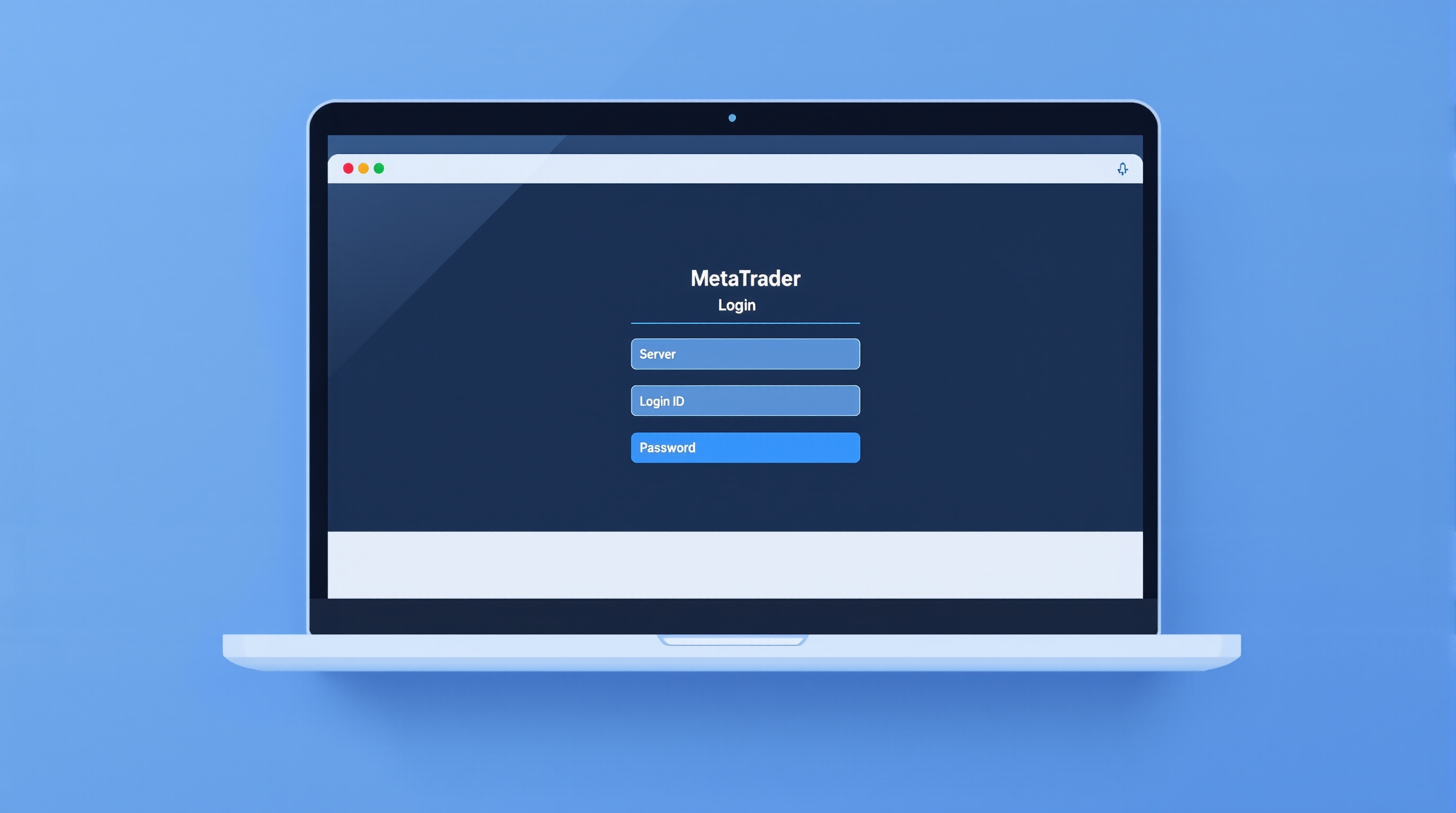
Getting the MetaTrader 4 login right the first time saves you a support ticket and a wasted evening staring at a "connection refused" message. This guide breaks down exactly what the server, login ID and password fields do, where to find them, and how to fix the most common login errors — using Pepperstone and IG as worked examples.
Why the MT4 login has three separate parts
MetaTrader 4 doesn't just need a username and password like a website. It needs to know which specific server your account lives on, because your broker runs many trade servers, often split by account type, region, or whether it's a demo or live account.
The three fields work together like this:
- Login ID — a numeric account number issued by your broker (e.g.
50123456). This identifies *you*. - Password — your trading password, set when the account was opened or reset via your broker's client portal. This authenticates you.
- Server — a text string like
Pepperstone-Live03orIG-Livethat tells the MT4 terminal *which broker data centre* to connect to. This routes you.
Get any one of these wrong and the terminal will sit there trying to connect, then throw an error. Unlike a website login, MT4 doesn't infer the server from your login ID — you must select or type it exactly as issued.
This structure exists because brokers run MetaTrader on their own infrastructure (or a white-label of it), and your account is provisioned on one particular server among several. Confirm your exact server name in your welcome email or the broker's client area — never guess it.
Where to find your server, login ID and password
Every broker delivers these details slightly differently, but the workflow is broadly the same:
1. Check your welcome email. After opening a live or demo account, brokers send an email confirming your login ID, initial password, and server name. 2. Log into the client portal. Both Pepperstone and IG (both FCA-regulated) let you view your MT4 account details from their secure client area — useful if the email is lost. 3. Look inside MT4 itself for the server list. In the terminal, go to *File > Login to Trade Account*, then use the Server dropdown or scan tool, which lists servers your broker has published. 4. For a new demo, MT4's "Open a Demo Account" wizard generates a login ID, password and server automatically — write them down immediately, as they're not always re-shown.
If you can't locate your server name, don't guess between similar-looking entries (e.g. "Live" vs "Live02") — contact your broker's support, as connecting to the wrong server simply won't work even with correct login and password.
Step-by-step: logging into MT4 for the first time
Follow this sequence on desktop MT4:
1. Open the MetaTrader 4 terminal (download from your broker's site if not installed). 2. Go to File > Login to Trade Account. 3. Enter your Login ID (numbers only, no spaces). 4. Enter your Password exactly as issued — it's case-sensitive. 5. Select your Server from the dropdown, or type it manually if it's not listed yet (use *Scan* to refresh available servers). 6. Tick Save password if you want auto-login on this device only — skip this on shared or public computers. 7. Click Login/OK and watch the bottom-right corner of the terminal: it should show the server name and a connection speed (ms) once successful.
On mobile, the process is nearly identical: tap Login to an existing account, enter your broker's name to auto-search servers, then your login ID and password.
Common MT4 login errors and how to fix them
| Error message | Likely cause | Fix | |---|---|---| | "Invalid account" | Wrong login ID or server mismatch | Re-check both against your welcome email | | "Invalid password" | Typo, caps-lock, or using investor password by mistake | Re-enter carefully; reset via client portal if needed | | "No connection" | Wrong server selected, or firewall/VPN blocking MT4 | Try a different network; disable VPN; reselect server | | Account connects then instantly disconnects | Account disabled, expired demo, or margin call restriction | Contact your broker's support desk |
A few extra checks worth doing before assuming something's broken:
- Confirm your internet connection is stable — MT4 needs a live socket connection to the server, not just general internet access.
- Make sure you're not accidentally logging into an investor (read-only) password when you need full trading access — brokers issue both.
- If you've just switched broker or account, double-check you're using the correct MT4 install, since some brokers use their own branded MT4 build tied to their server list.
Investor password vs main password: don't mix them up
MT4 issues two passwords per account:
- Main (trading) password — full access: place trades, modify orders, change settings.
- Investor (read-only) password — view-only access to balances, positions and history, with no ability to trade.
The investor password is genuinely useful if you want to share account viewing with a mentor, an accountant, or a monitoring tool without handing over trading control. But it's a frequent source of "my login isn't working" confusion — if you enter the investor password expecting to place a trade, MT4 will let you log in but the trade buttons simply won't function as expected.
If you're not sure which one you have, log in and try to place a demo trade — if it's rejected, you're on the investor password. Reset either password independently via your broker's secure client portal; you don't need to contact support for a routine reset in most cases.
MetaTrader 4 login checklist for Pepperstone and IG accounts
Since Pepperstone and IG are both FCA-regulated and commonly used with MetaTrader, here's a quick sanity checklist specific to broker-provisioned accounts:
- Confirm platform availability first — always verify on the broker's own site whether your account type supports MT4 (some run MT5 or their own proprietary platform instead), before assuming your login details apply to MT4.
- Match the server exactly to what's shown in your client portal — Pepperstone and IG both run multiple servers, and account type or entity (UK vs offshore) can determine which one you're issued.
- Re-download the broker-specific MT4 build if the generic MetaQuotes version doesn't show your server in the list — broker-branded installers usually pre-populate their own servers.
- Check live trading costs, not just login mechanics, once you're connected — spreads, commissions and swaps vary by account type and change over time, so run your setup through PipTax's cost tool at [/audit.html](/audit.html) rather than relying on marketing pages.
- Compare regulated brokers properly on PipTax's [brokers directory](/brokers/index.html) before opening a new account purely to fix a login issue — sometimes a fresh account with clean documentation is faster than troubleshooting.
Getting your MetaTrader 4 login sorted for good
A clean MetaTrader 4 login comes down to three things matching exactly — login ID, password and server — and knowing which password (main or investor) you're using. Once you're connected, don't stop at "it works": use PipTax's [cost impact tool](/cost-impact.html) and [audit tool](/audit.html) to check the real all-in cost of trading on that account, and browse our [broker comparisons](/brokers/index.html) if you're evaluating whether your current setup is still the right one. Trading carries risk of loss, so get the operational basics — like your MT4 login — right before you focus on strategy.
Key takeaways
- MT4 login requires three matching parts: numeric login ID, password, and an exact server name — get any one wrong and connection fails.
- Server names (e.g. Pepperstone-Live03, IG-Live) route you to the correct broker data centre and must be confirmed via welcome email or client portal, never guessed.
- MT4 issues two passwords — main (full trading access) and investor (read-only) — and mixing them up is a common cause of 'login not working' confusion.
- Common errors like 'Invalid account', 'Invalid password' and 'No connection' usually trace back to a server mismatch, typo, or network/VPN issue.
- Once logged in, verify actual trading costs on your account via PipTax's cost tool rather than relying on marketing spread claims.
- Confirm platform availability (MT4 vs MT5 vs proprietary) directly on your broker's site before assuming login details apply.
Frequently asked questions
- Why does MT4 need a server name as well as a login and password?
- Brokers run multiple trade servers (often split by account type or region), so MT4 needs the server name to route your login to the correct data centre. Without it, your login ID and password alone won't connect you anywhere.
- Where do I find my MT4 server name for Pepperstone or IG?
- Check your welcome email from account opening, or log into the broker's client portal, which lists your MT4 login ID, password and server. You can also use the Scan feature inside MT4's login window.
- What's the difference between the main password and investor password in MT4?
- The main (trading) password gives full access to place and modify trades. The investor (read-only) password only allows viewing balances and history — no trading actions are possible with it.
- I entered the correct login and password but MT4 still won't connect. Why?
- This is usually a server mismatch, a network/firewall issue, or a VPN blocking the connection. Reselect the correct server from the dropdown and try a different network before contacting broker support.
- Do Pepperstone and IG both support MetaTrader 4?
- Both are FCA-regulated brokers that have offered MetaTrader platforms, but exact platform availability can vary by account type. Always confirm current MT4/MT5 support directly on the broker's own site before assuming your account details apply.
- Can I use the same MT4 login on my phone and desktop at the same time?
- Yes, MT4 allows simultaneous logins across devices with the same login ID, password and server — useful for monitoring trades on the move while running your main platform on desktop.