MT4 Demo to Live: How to Switch Your Account Safely
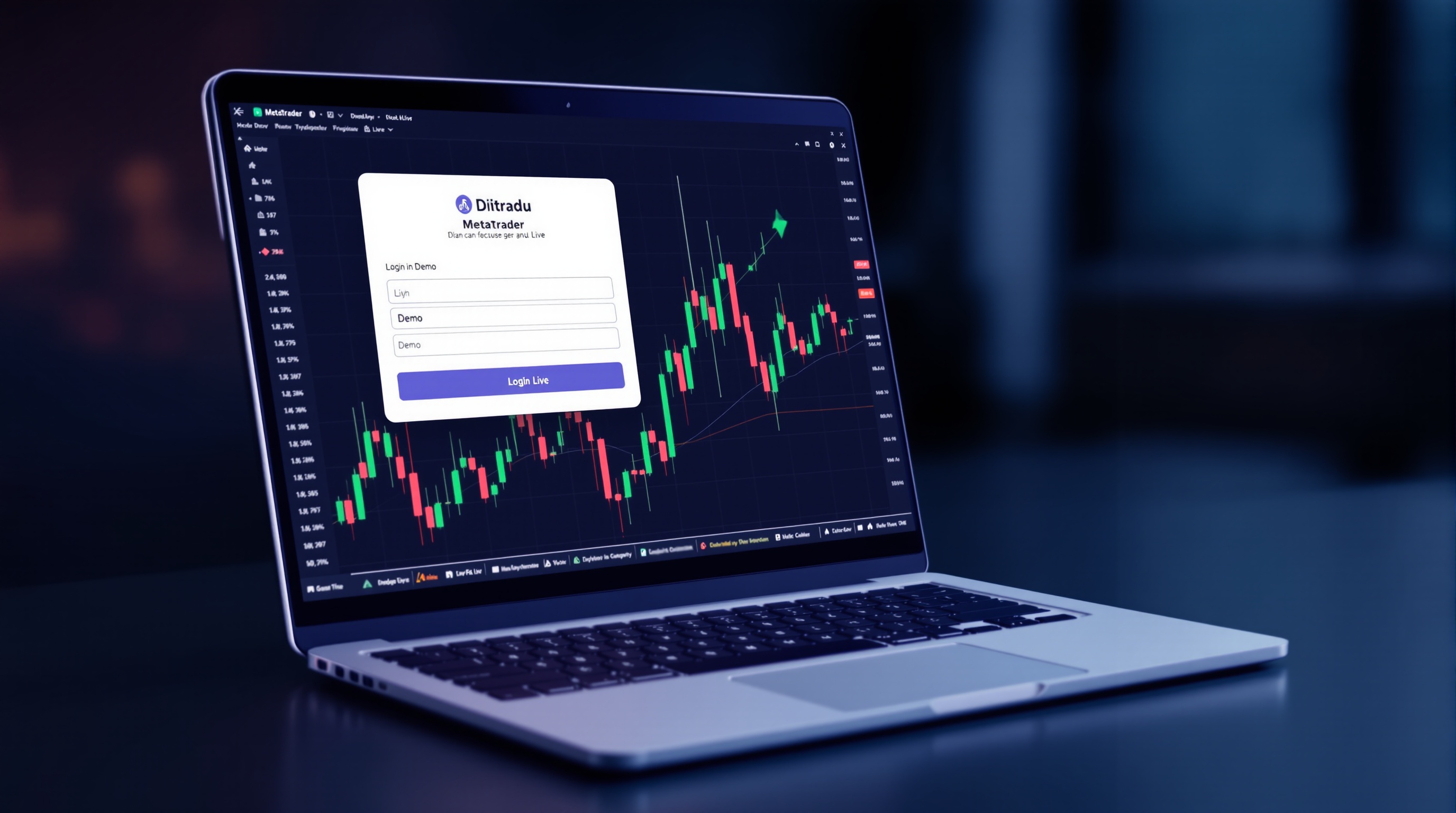
Learning how to switch MetaTrader 4 from demo to live is one of those jobs that looks fiddly the first time and takes two minutes once you know the steps. This guide walks through exactly what changes, what stays the same, and the checks worth doing before you put real money on the line.
Why demo to live isn't a simple toggle
A common misconception is that there's a button inside MT4 that "upgrades" your demo account to live. There isn't. A demo account and a live account are two completely separate things, even when they sit with the same broker:
- Different account number — live accounts get their own unique login ID.
- Different server — demo accounts run on a demo server (e.g.
BrokerName-Demo); live accounts run on a live-trading server (e.g.BrokerName-Liveor a regional variant). - Different money — demo balances are virtual; live balances are your deposited funds.
So "switching" really means: open a live account with your broker, get new credentials, and log the MT4 terminal into the live server instead of the demo one. Your demo login keeps working afterwards if you want to keep practising or testing.
Step 1: Open the live account with your broker
Before touching MT4, you need an approved live trading account. With an FCA-regulated broker such as Pepperstone or IG, this normally involves:
1. Completing an online application (personal details, trading experience, employment info). 2. Identity verification — usually a passport/driving licence plus a proof of address. 3. An appropriateness or suitability questionnaire, standard for FCA-regulated firms. 4. Choosing your account type/base currency, where the broker offers a choice. 5. Making your first deposit via bank transfer, debit card, or another supported method.
Once approved, the broker sends your live MT4 login number, password, and server name — usually by email and also visible in your client portal. Keep this information secure; anyone with these details could trade or withdraw where permitted.
Step 2: Add the live server in MT4
With your live credentials in hand:
1. Open your MT4 terminal (the same one you used for demo is fine).
2. Go to File > Login to Trade Account.
3. Enter your live login number and password.
4. In the Server field, select or type the exact live server name your broker gave you — this is the step people get wrong most often, since typing "Live" instead of the precise server string (e.g. Pepperstone-Live01) will fail to connect.
5. Click Login. If the server isn't listed, you may need to download the broker's branded MT4 installer, which pre-loads its server list.
Once connected, your terminal title bar and top-right corner will show the live account number, and — critically — a live balance rather than demo virtual funds.
Step 3: Check your account settings before trading
Before placing a single live trade, confirm the following inside MT4 and your broker's portal:
- Base currency matches what you intended (GBP, USD, EUR, etc.)
- Leverage applied to the account — for FCA-regulated brokers, retail leverage on major FX pairs is capped at 30:1, which affects your margin requirements and position sizing compared to some demo defaults.
- Margin call and stop-out levels, so you know at what point positions get automatically closed.
- Deposit has cleared and shows in your account balance correctly.
None of this is exciting, but skipping it is how traders end up sized far larger (or smaller) than they planned.
Verify real trading costs before you fund it
Demo accounts sometimes run on simplified or generic pricing that doesn't match what you'll actually pay live. Spreads, commissions and swap rates can differ by broker, account type, and even by the specific instrument. Rather than assuming your demo experience reflects live costs:
- Use PipTax's [cost audit tool](/audit.html) to compare realistic all-in trading costs.
- Check current details directly on the [brokers page](/brokers/index.html) for firms like Pepperstone and IG.
- Understand how spreads, commission and execution model combine into your true cost per trade via our [methodology](/methodology.html) page.
This step matters more than most traders expect — a strategy that looked profitable on demo can behave differently once real spreads, commissions and swaps are applied.
Test execution and slippage on a small live position
Even with identical strategy and settings, live execution can differ from demo:
- Slippage — live markets can fill your order at a slightly different price than requested, especially in fast-moving conditions.
- Requotes or rejections — more likely on some account/execution types than others.
- Emotional difference — real money changes decision-making, even for experienced demo traders.
A sensible approach:
1. Trade your smallest possible live position size first. 2. Compare fill prices and spread behaviour against what you saw on demo. 3. Only scale up size once you're comfortable the live behaviour matches your expectations.
Keep demo and live cleanly separated
To avoid costly mix-ups:
- Consider using separate MT4 installations (one for demo, one live-branded) if your broker offers a dedicated live installer.
- Label chart profiles or templates clearly so you always know which account you're viewing.
- Double-check the account number in the terminal's top corner before placing any trade — especially if you regularly flip between demo testing and live trading.
Final check before you go live
Switching MetaTrader 4 from demo to live is straightforward once you understand it's a new account and login, not a setting change. The real work is in the preparation: get your live account properly verified, log into the correct live server, confirm your leverage and margin settings, and verify actual trading costs rather than relying on demo pricing. Do that groundwork and the technical switch itself takes moments — leaving you to focus on trading, not troubleshooting logins. For a broader grounding in platform and account basics, PipTax's [trading school](/school/index.html) is worth a browse before you commit real capital.
Trading forex carries real risk of loss, and past demo performance is no guarantee of live results.
Key takeaways
- Switching MetaTrader 4 from demo to live means logging into a new live account number on your broker's live server — it's not a settings toggle inside the same demo account
- You'll need to open a live account with your broker (e.g. Pepperstone or IG), pass verification, then receive new MT4 login credentials and a live server name
- Always check real spreads, commissions and swaps via a cost tool before funding, since demo pricing can differ from live conditions
- Start small and re-test your strategy on live for slippage and execution differences before scaling up size
- FCA rules cap retail leverage at 30:1 on major FX pairs, which will change your margin requirements versus many demo defaults
- Keep demo and live MT4 installations or profiles separate to avoid accidentally trading real money by mistake
Frequently asked questions
- Can I just convert my existing MT4 demo account into a live one?
- No. A demo account and a live account are separate logins on separate servers, even with the same broker. You open a live account through the broker's application process, and they issue you a brand new account number, password and live server name to log into on MT4. Your demo account keeps running independently.
- Do I need to download MT4 again for a live account?
- Usually not. You can normally use the same MT4 terminal you used for demo trading. You just need to add the broker's live server (via File > Login to Trade Account, or by downloading the broker-branded MT4 build) and log in with your new live credentials.
- Will my live account have the same spreads and leverage as my demo?
- Not necessarily. Demo accounts sometimes use simplified or generic pricing, and leverage defaults can differ from what applies to your live account under FCA rules (capped at 30:1 on major FX pairs for retail clients). Always check real costs using a cost comparison tool before you trade live.
- How long does it take to switch from MT4 demo to live?
- Account opening with an FCA-regulated broker like Pepperstone or IG typically involves identity verification and can take from a few minutes to one or two business days, depending on how quickly your documents are checked. The MT4 login switch itself takes seconds once your live account is approved.
- Is it safe to trade live on MT4 straight after demo trading?
- It can be, but treat it as a new phase, not a continuation. Real execution, slippage and emotions differ from demo. Start with small position sizes, confirm your risk settings, and re-verify your strategy's performance under live conditions before increasing size.
- What details will I need from my broker to log into live MT4?
- You'll need your live account number (login), your live account password, and the exact live server name (e.g. shown in your broker's client portal or welcome email). Entering the wrong server name is the most common reason traders fail to connect on their first live login attempt.