Move Your EA, Indicators & Settings to a New VPS
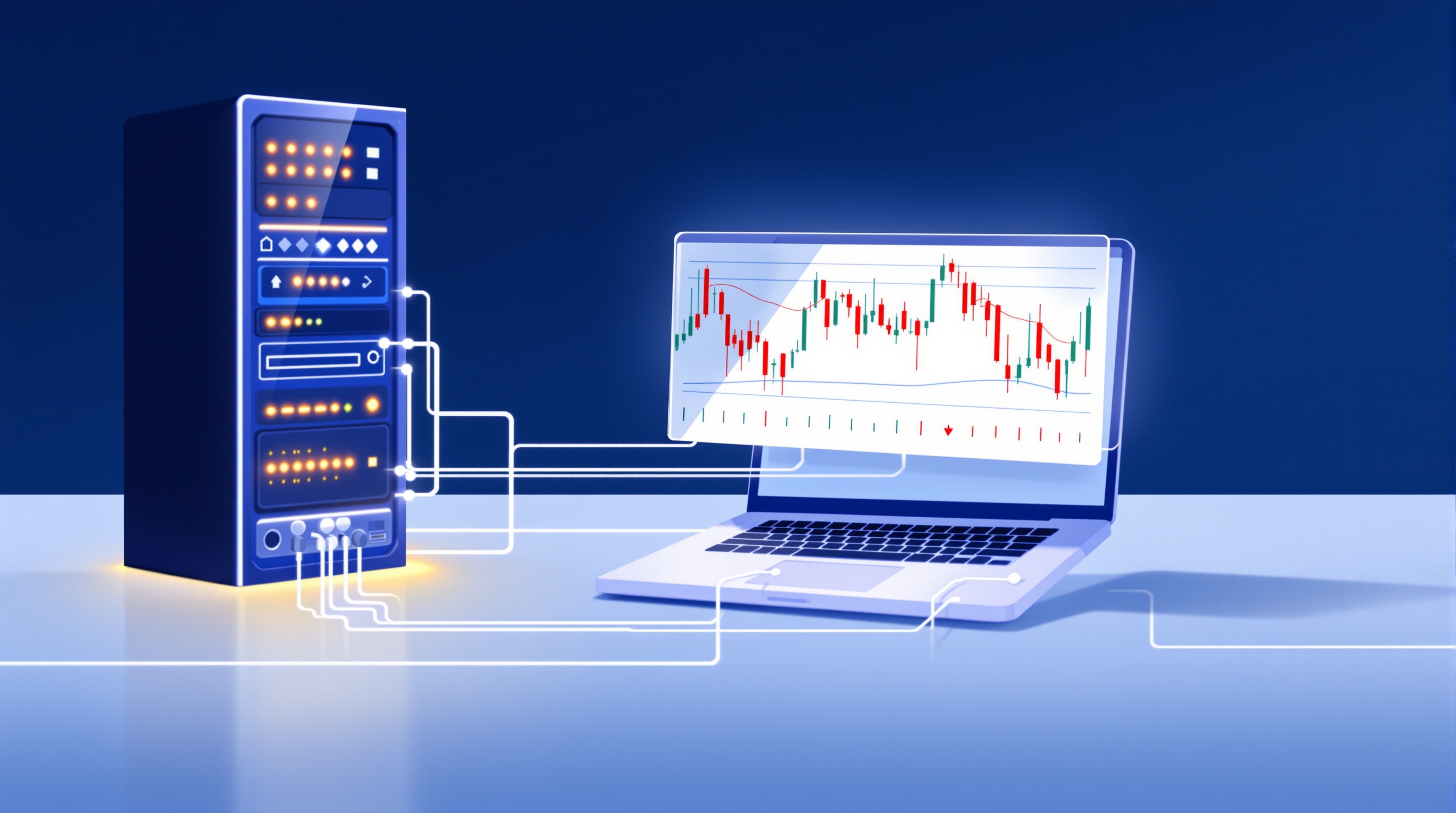
If you're about to move your EA to a new VPS, the good news is it's a mechanical job with a clear checklist — the risk is in what people forget to copy, not in anything mysterious about the process. This guide walks through the actual files to transfer, how to pick a sensibly located VPS, how to measure real latency to your broker instead of trusting marketing copy, and how to lock the box down so it survives unattended 24/7.
Why you'd move your EA to a new VPS in the first place
Common reasons include:
- Your current provider is unreliable — random reboots, slow disk, or support that doesn't answer.
- You want to be closer to your broker's server, particularly if your old VPS is in the wrong region entirely.
- You're upgrading resources — more RAM/CPU for multiple EAs or heavier indicators.
- You're consolidating accounts, e.g. running Pepperstone and IG terminals from one box instead of two subscriptions.
None of these reasons mean your strategy needs rework. A VPS move is infrastructure, not strategy. Keep that distinction in mind — it stops you second-guessing a system that was working fine and only needed a new home.
Before migrating, write down exactly what's currently running: which EAs, on which symbols, with which .set file, on which account number. This list becomes your acceptance test on the new box.
What to actually copy across
MetaTrader stores most of what you need in the MQL4/MQL5 data folder, not the install folder. From MetaTrader, go to File → Open Data Folder, then copy:
- Experts folder — your compiled .ex4/.ex5 files (and source .mq4/.mq5 if you have them)
- Presets folder — your saved .set input files for each EA/pair combination
- Indicators folder — any custom indicators the EA depends on
- Files folder and Common\Files — logs, CSVs, or config files some EAs read/write at runtime
- Templates and profiles — chart templates if you want the same chart layout on arrival
Do not just copy the whole MetaTrader install directory and expect it to work — reinstall the terminal fresh on the new VPS, log into your account, then drop the folders above into place. This avoids dragging over corrupted state or a stale terminal version.
Finally, re-attach each EA manually, re-load its .set file, and tick "Allow live trading" again — these settings don't always survive a folder copy silently, so verify each chart individually.
Choosing where the new VPS actually sits
This is where most of the real performance gain (or loss) happens. Your VPS should sit close to your broker's matching engine, not close to you. Many FX and CFD venues in London-area liquidity pools co-locate near Equinix LD4 in Slough, so a London-based VPS is a reasonable default if your account runs with a UK-regulated broker such as Pepperstone or IG.
Practical steps:
1. Check your MT4/MT5 account's server address (Tools → Options → Server, or your broker's account portal). 2. Ask your VPS provider which city/data-centre their servers are physically in — "UK" isn't specific enough; you want the actual metro. 3. If your broker's server sits in London, a VPS in London will usually beat one in, say, Frankfurt or New York for that specific account — even if the other city sounds impressive.
Don't chase geography for its own sake. If you trade longer timeframes and don't scalp, a few extra milliseconds rarely changes anything meaningful in your results.
Measuring latency honestly, not guessing
Don't take a VPS provider's "ultra-low latency" claim at face value — test it yourself with tools you already have.
Inside MetaTrader: - Open the Journal tab and watch execution messages — MT4/MT5 log order send/execution timing in milliseconds for market orders. - Compare this across a session (dozens of trades or test orders), not one lucky tick.
From the VPS itself (Windows):
- Open Command Prompt and run ping for a quick round-trip time.
- Run tracert to see the network path and where delays are introduced (useful if numbers look unexpectedly bad).
Record before-and-after numbers when you migrate, so you know whether the new VPS actually improved anything or just changed where the box sits without changing your results.
Being honest about what low latency actually buys you
This bit matters more than any latency number: shaving milliseconds off your VPS-to-server ping does not guarantee better fills. For retail accounts:
- Your order still passes through the broker's bridge and order-handling logic, which is usually the bigger contributor to slippage than the last few milliseconds of network path.
- Spread and commission dominate your cost per trade far more than latency does for anything other than aggressive scalping strategies.
- "Sub-millisecond" language is common in institutional co-location marketing — it's not a realistic description of retail execution once broker processing is included.
If your results are underwhelming, check whether it's a cost problem rather than a latency problem. Run your actual account numbers through the cost tool at /audit.html and compare brokers at /brokers/index.html before spending money chasing a faster VPS.
Hardening the VPS before you walk away
A 24/7 unattended Windows box is a target. Before trusting it with a live account:
| Task | Why it matters | |---|---| | Change the default RDP port | Reduces automated scanning/brute-force attempts | | Use a strong, unique password (or key-based auth if supported) | Default/weak passwords are the most common breach point | | Restrict RDP access by IP allow-list | Only your own IP(s) can even attempt to connect | | Enable the Windows firewall, block unused ports | Limits attack surface beyond RDP | | Set MetaTrader (and EA) to auto-start after reboot | Ensures a provider-side reboot doesn't leave you flat with no EA running | | Test a full VPS restart before going live | Confirms auto-start, login, and EA re-attachment actually work unattended |
Schedule Windows updates for a low-impact time and check your VPS provider's reboot/maintenance policy — some patch automatically, which is exactly why the auto-start test above isn't optional.
Final checklist before you switch over
Run this before you decommission the old VPS:
- New VPS confirmed in the right city/region for your broker's server
- All .set, .ex4/.ex5, Files, Common\Files folders copied and verified
- Each EA re-attached, correct .set loaded, live trading enabled per chart
- Ping/tracert and Journal execution times recorded and sane
- RDP hardened — port changed, IP allow-listed, firewall on
- Auto-start tested with a genuine reboot, not just a guess
Keep the old VPS running in parallel for a day or two while you confirm the new one behaves identically. Once you're confident you've correctly moved your EA to a new VPS — same settings, same execution behaviour, better uptime — you can safely cancel the old subscription.
Key takeaways
- Moving your EA to a new VPS is a file-transfer job, not a re-optimisation job — copy the exact .set files, .ex4/.ex5 compiled versions, and the Files/Common folders across
- Pick a VPS location based on your broker's matching engine, not your own location — many FX venues co-locate near Equinix LD4 in Slough, so a London-based VPS often beats one near where you live
- Measure real latency yourself using the MT4/MT5 Journal's execution ms, plus ping and tracert to the broker's server IP — don't trust marketing claims of 'sub-millisecond' retail execution
- Low latency to the matching engine is only one factor; broker order handling, the dealing bridge, and your spread/commission usually matter more to your actual results
- Harden RDP with a non-default port, strong password or key-based auth, and IP allow-listing before you walk away from a 24/7 VPS
- Set MetaTrader and your EA to auto-start after reboot and test a full VPS restart before you trust it with a live account
Frequently asked questions
- Do I need to re-optimise my EA settings on the new VPS?
- No, not because of the VPS itself. If your .set files were profitable on the old VPS, the same inputs should run identically on the new one — a VPS doesn't change strategy logic. The only reason to re-check settings is if you're also switching broker or account type, since spread and execution can differ. Use the cost tool at /audit.html to see how much that switch might actually cost you.
- How close does my VPS need to be to the broker's server?
- As close as practically available, but don't obsess over a few milliseconds if you're not scalping. Many FX brokers route through data centres in or near London (close to Equinix LD4 in Slough), so a London-based VPS is usually a sensible default for UK-regulated brokers like Pepperstone or IG. Check your specific account's server address and pick a VPS provider with a data centre in the same city or region.
- What's a normal ping to my broker's trading server?
- It varies by provider and route, but many well-placed VPS setups land somewhere in the low single digits to a few tens of milliseconds to a London-based broker server. There's no single 'good' number that applies to everyone — what matters is comparing your own before-and-after readings using ping and the MT4/MT5 Journal, not comparing to numbers you saw in a forum post.
- Can I run two VPSs at once during the migration to avoid downtime?
- Yes, and it's the safest way to migrate. Set up and fully test the new VPS — including a reboot test — while the old one keeps trading. Only stop the old VPS once you've confirmed the EA is running, auto-start works, and execution looks normal on the new one for at least a day or two.
- Does a VPS actually improve my trading results?
- A VPS mainly gives you uptime (your EA runs 24/7 without your home PC or internet) and can shave some latency to the server. It does not change your edge, your spread, or your broker's execution quality. If costs are eating your results, that's a broker and account issue to check at /brokers/index.html and /audit.html, not something a faster VPS fixes.