MetaTrader 5 Login Explained: Server, ID & Password
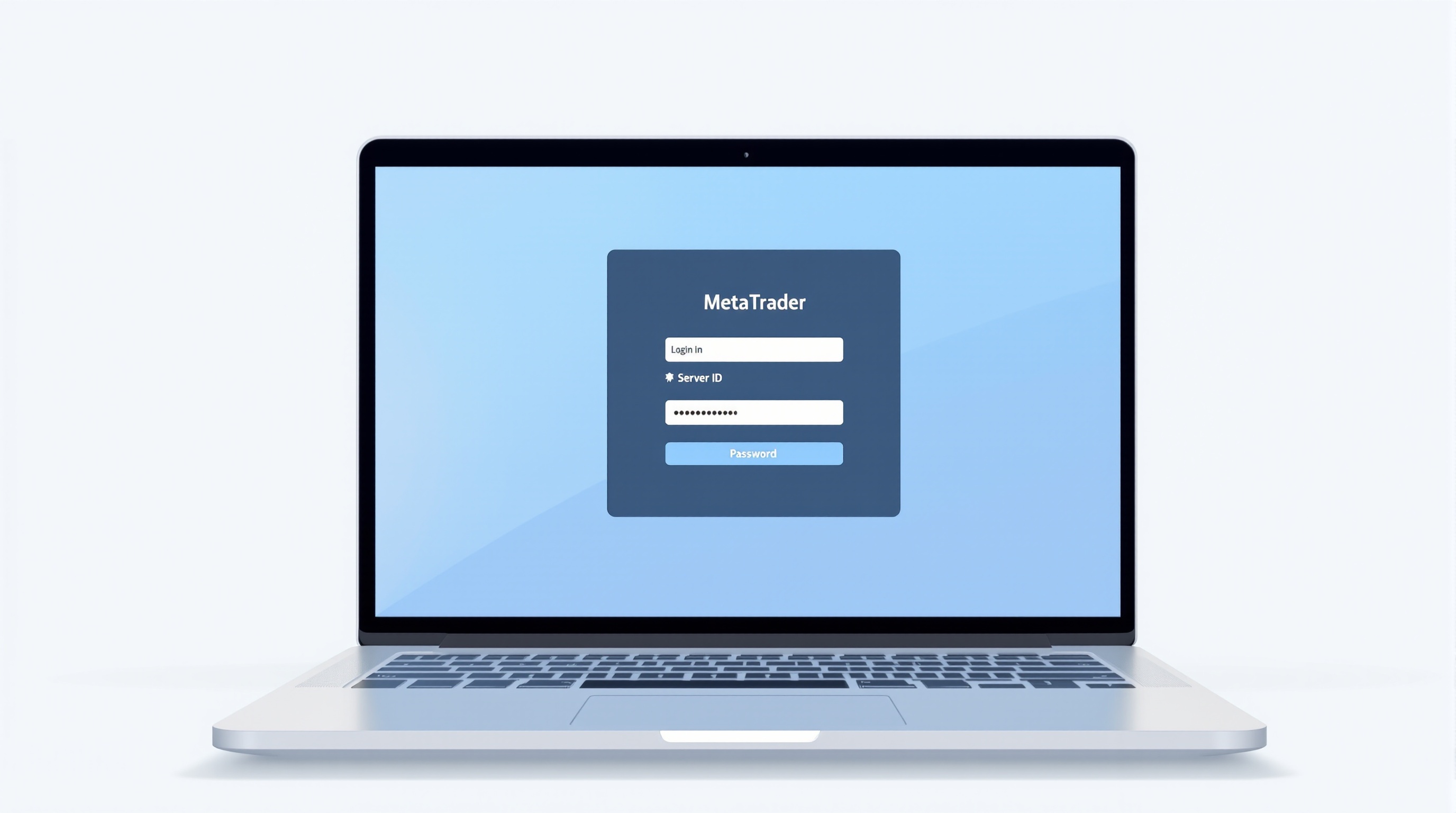
If you've just downloaded the platform and you're staring at three empty boxes, a MetaTrader 5 login is simpler than it looks: it's just your account number, your password, and the name of the specific server your broker has assigned you. Get all three right and you're in. Get one wrong and MT5 will sit there refusing to connect, with no obvious clue why — which is where most of the confusion comes from.
This guide walks through what each field actually means, where to find the right values, and how to fix the connection errors that trip people up most often.
What the MT5 Login Screen Is Actually Asking For
MetaTrader 5 splits your credentials into three separate fields because each one does a different job:
- Login (account number) — a numeric ID your broker generates when the account is opened, whether it's a demo or a live account.
- Password — authenticates you as that account holder. MT5 issues two passwords (more on this below), and using the wrong one is a very common snag.
- Server — tells the terminal *which physical trading server*, run by *which broker*, to connect to. This is not a generic setting; it's specific to your broker and often to your account type.
All three live in the same "Login to Trade Account" window in MT5, accessed via File > Login to Trade Account, or automatically when you first open the platform after installing it.
One subtlety: your login ID is only meaningful *in combination with* the correct server. The same numeric ID could theoretically exist on a different broker's server, so MT5 needs the full trio to know exactly where to send your credentials.
Finding Your Correct Server Name
This is the field people guess wrong most often, because it isn't printed on the MT5 splash screen in an obvious way.
Where to find it:
1. Check the welcome email sent when you opened the demo or live account — brokers almost always list the server name here alongside your login and password. 2. Log into your broker's client portal and look under account or platform details. 3. Inside MT5 itself, go to File > Login to Trade Account, click the server dropdown, and type your broker's name — if you've previously connected, saved servers will appear.
Why it matters:
- Brokers often run *multiple* servers — separate ones for demo accounts, live accounts, and sometimes different regulatory entities or account types.
- Server names are exact strings, e.g.
BrokerName-Live02orBrokerName-Demo— a typo or wrong number will fail silently rather than offering a helpful error. - If you opened accounts with more than one broker, don't assume — always double-check which server belongs to which login.
Both Pepperstone and IG are FCA-regulated brokers that have supported MetaTrader connections, and each publishes its own server list for clients. Always confirm current platform availability and your specific server name directly through the broker's own site or portal rather than assuming it matches an older account.
Master Password vs Investor Password
MT5 automatically generates two passwords per account, and mixing them up is one of the most common "I can't log in properly" complaints:
| Password type | What it does | Typical use | |---|---|---| | Master (trading) password | Full access — place trades, withdraw, change settings | Your everyday trading login | | Investor (read-only) password | View-only — see charts, positions, history | Sharing account visibility (e.g. with a mentor or for monitoring) without giving trade control |
If you log in and the account loads, shows your balance and open trades, but the Buy/Sell buttons are greyed out or trades won't execute, you've almost certainly entered the investor password by mistake. Go back to your welcome email or client portal and check which password is labelled "master" or "trading."
If you've lost both, you'll need to request a reset through your broker's support channel — there's no way to recover the original password, only to have new ones issued.
Common MT5 Connection Errors and What They Actually Mean
Most login failures fall into a handful of categories:
- "Invalid account" — usually a mismatched login/server pair, or the account hasn't been fully activated yet (common with brand-new live accounts).
- "No connection" — typically a network problem: a firewall, antivirus, restrictive Wi-Fi, or corporate VPN blocking MetaTrader's connection ports.
- Demo account expired — many broker demos auto-expire after a set number of days; you'll need to request a fresh one.
- Wrong password type entered — see the master vs investor issue above.
- Server not found in dropdown — type the exact server name manually rather than relying on the search suggestions, especially just after opening a new account (server lists can take a few minutes to sync).
Quick troubleshooting order:
1. Re-check the server name character-for-character against your welcome email. 2. Confirm you're using the master password, not the investor password. 3. Try a different network (mobile hotspot is a good quick test) to rule out a firewall/VPN block. 4. Check the Journal tab in MT5's terminal window — it logs the exact rejection reason, which is far more useful than the pop-up error. 5. If nothing works, contact your broker's support with your login ID and the Journal error text.
Logging In Across Devices: Desktop, Mobile and VPS
The same login ID, password and server work identically across every MT5 environment:
- Desktop terminal (Windows/Mac) — the full-featured version most traders use day to day.
- MT5 mobile app (iOS/Android) — same credentials, useful for monitoring or closing trades on the move.
- WebTrader — browser-based, no install needed, same login trio.
- VPS (virtual private server) — for traders running EAs 24/5 without keeping a home PC on, you install MT5 on the VPS and log in exactly the same way.
You can be logged into more than one of these simultaneously — MT5 doesn't restrict you to a single active session. This is genuinely useful: many traders run the master login on a VPS for EA execution, and the investor password on a phone purely to check on positions without any risk of accidentally tapping a trade button.
Getting the Broker Details Right Before You Fund an Account
Sorting out your MetaTrader 5 login is a five-minute mechanical task — the more important decision is which broker's server you're connecting to in the first place. Before funding any live account:
- Confirm the broker is genuinely FCA-regulated if you're trading from the UK (remember FCA rules cap retail leverage at 30:1 on major FX pairs).
- Verify MT5 platform availability directly on the broker's website — not every broker offers MT5 on every account type, and some have shifted between MT4, MT5 and proprietary platforms over time.
- Check execution model, spreads and commissions are what you expect for your strategy — never rely on marketing pages alone.
- Compare all-in trading costs using PipTax's [cost audit tool](/audit.html), which strips out marketing spin and shows the real numbers.
- Browse the [brokers directory](/brokers/index.html) for a like-for-like look at regulation, platform support and account structures.
Getting the mechanics of a MetaTrader 5 login right means you can actually get to work — but it's the broker choice underneath it that determines your real trading costs.
Conclusion
A MetaTrader 5 login boils down to three exact-match fields — login ID, password, server — and almost every connection failure traces back to one of them being slightly wrong: the wrong password type, a mistyped server name, or a network blocking the connection. Sort those out with your broker's welcome email and portal, and the platform itself becomes the easy part. For everything downstream of logging in — costs, regulation, and whether MetaTrader is even the right platform for your account type — check PipTax's [cost tool](/audit.html) and the [brokers page](/brokers/index.html), and use the [school section](/school/index.html) if you want a broader platform walkthrough.
Key takeaways
- A MetaTrader 5 login needs three things: a login ID (account number), a password, and the correct broker server name — get any one wrong and you can't connect.
- The server name is broker- and often account-type-specific (e.g. demo vs live, or a specific data centre), so copy it exactly from your welcome email rather than guessing.
- MT5 issues two passwords by default: a master (trading) password and a read-only investor password — mixing these up is one of the most common login failures.
- 'Invalid account' or 'no connection' errors are usually caused by a wrong server, an expired demo, or a firewall/VPN blocking MetaTrader's ports — not a broken platform.
- Always confirm live spreads, commissions and MT5 availability directly with your broker and cross-check with PipTax's cost tool before funding an account.
- Both Pepperstone and IG are FCA-regulated and support MetaTrader connections, but you should verify current platform options and account terms on their own sites.
Frequently asked questions
- Where do I find my MT5 server name?
- It's in the welcome email your broker sends when you open a demo or live account, and it's also usually shown in your broker's client portal under account details. It's not something you invent — it must match exactly, including capitalisation and any hyphens or numbers, e.g. BrokerName-Live03.
- What's the difference between the MT5 master password and investor password?
- The master (trading) password lets you log in and place trades. The investor password is read-only — it lets someone view the account (charts, history, open positions) but not trade or withdraw. If you can see the account but can't click Buy/Sell, you've likely logged in with the investor password by mistake.
- Why does MT5 say 'no connection' even though my details are correct?
- This is almost always a network issue: a firewall, antivirus, corporate VPN or restrictive Wi-Fi blocking MetaTrader's connection ports. Try a different network, temporarily disable the firewall to test, or check the platform's Journal tab for the exact rejection reason.
- Can I use the same MT5 login on my phone, laptop and a VPS?
- Yes. The login ID, password and server work across the desktop app, MT5 mobile app, and any VPS running the terminal. You can even be logged in on multiple devices at once — MT5 doesn't lock the account to a single machine.
- Do Pepperstone and IG both support MetaTrader 5?
- Both are FCA-regulated brokers that have offered MetaTrader connections, but platform line-ups and account types change over time. Always confirm current MT5 availability, and the exact server list for your account, directly on the broker's website before assuming access.
- I forgot my MT5 password — what now?
- You can't recover the original password, but you can reset it. On MT4/MT5 desktop, most brokers let you request a new investor or master password via their client portal or by contacting support, who will issue new credentials to your registered email.