Fixing IG MetaTrader 4 Login and Connection Problems
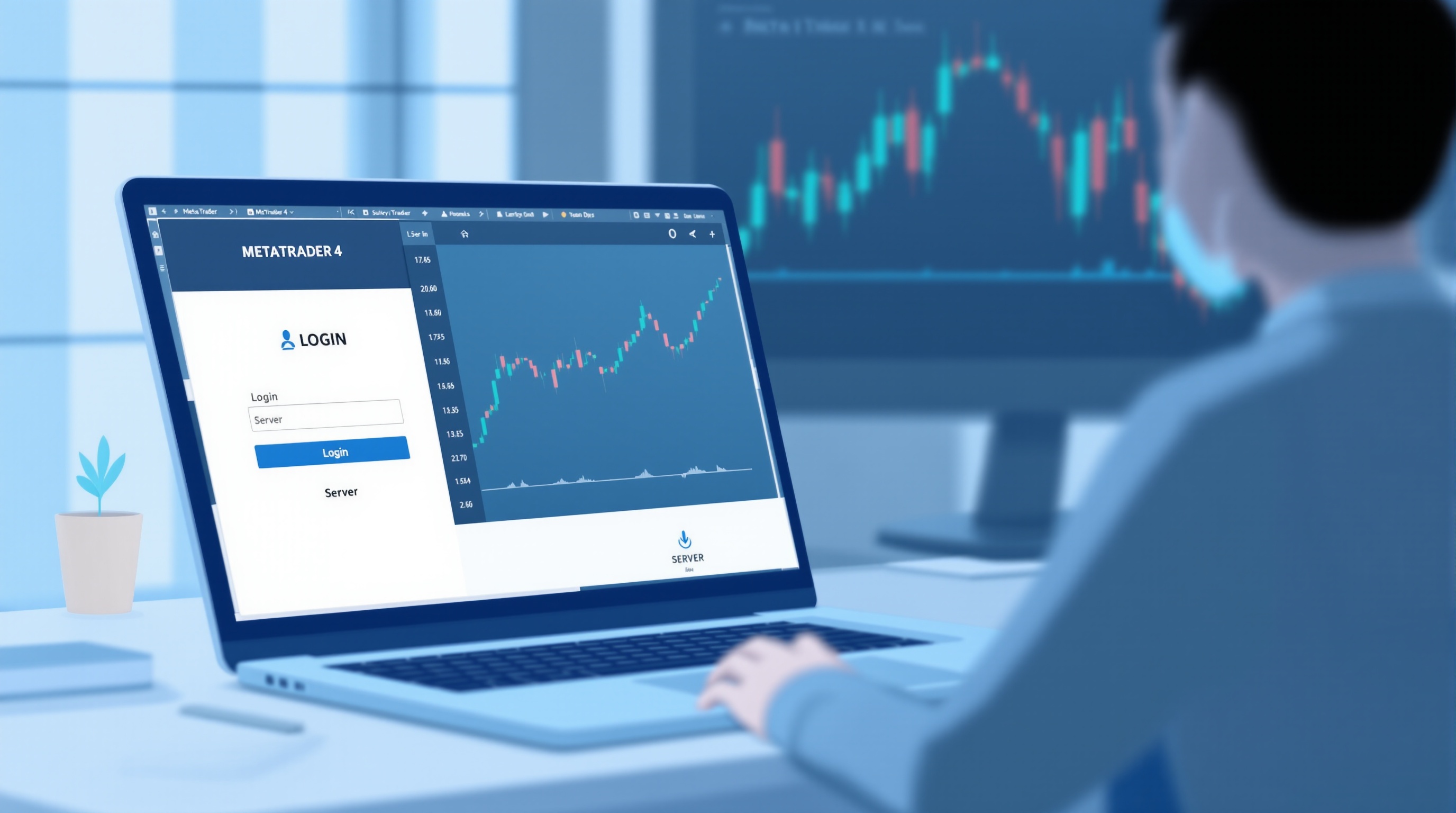
Struggling with IG MetaTrader 4 login and connection problems is more common than you'd think, and most of the time it's fixable in a few minutes without contacting support. IG is a well-established FCA-regulated broker that has offered MetaTrader alongside its own platform for years, but MT4 connectivity issues — "invalid account", greyed-out charts, or a server that never connects — tend to stem from a handful of predictable causes. This guide walks through them in order, so you can get back to charts and orders quickly.
Why IG MT4 connections fail in the first place
Before troubleshooting, it helps to understand what's actually happening. MT4 is a third-party terminal talking to IG's trade servers over the internet, so a "connection problem" usually sits in one of four places:
- Credentials — wrong login, password, or server mismatch (very common after opening a new demo or live account)
- Server selection — MT4 is pointed at the wrong IG server entry, or an outdated server list
- Network/firewall — antivirus, corporate networks, or VPNs blocking the MT4 ports
- Platform/account status — the account is dormant, unfunded, or restricted, or the terminal itself is outdated
Because IG runs specific MetaTrader server addresses for live and demo accounts, mixing these up is one of the single biggest causes of login failures. Always confirm current login details, and whether IG makes MT4 or MT5 available on your account type, directly on IG's own site — platform offerings and server names can change.
Step-by-step fix for IG MT4 login errors
Work through these in order rather than jumping around:
1. Re-check your credentials — copy-paste the account number and password from IG's confirmation email or client portal rather than retyping them; trailing spaces cause silent failures. 2. Confirm the server — in MT4, go to File → Login to Trade Account, and make sure the server dropdown matches the exact IG server tied to your account type (live vs demo). 3. Update the server list — if your IG server isn't listed, download a fresh terminal install from IG or refresh the server list via Help → About or by reinstalling. 4. Restart the terminal — closing and reopening MT4 forces a fresh connection handshake and clears stuck sessions. 5. Check account status — dormant or newly opened accounts sometimes need a short activation delay before MT4 access goes live; check IG's client portal for account status messages.
If all five steps check out and you still can't connect, it's very likely network-related rather than an account problem.
Network and firewall issues that block MetaTrader
MT4 needs outbound access on specific ports to reach IG's trade servers, and a lot of "IG won't connect" tickets are actually local network blocks. Common culprits:
- Corporate or public Wi-Fi that blocks non-standard ports
- Antivirus/firewall software treating MT4 as suspicious
- VPNs, which can route traffic through servers that IG's infrastructure doesn't recognise or that add latency causing timeouts
- Outdated Windows/macOS network stacks on very old machines running MT4 via Wine or emulation
Quick checks:
- Try connecting on a different network (mobile hotspot is a fast test)
- Temporarily disable VPN and see if the connection succeeds
- Add MT4 as an exception in your firewall/antivirus
- Test at a different time of day to rule out ISP congestion
If MT4 connects on one network but not another, you've found your answer — it's local, not IG's servers.
Server selection and platform version problems
A surprisingly frequent issue is running an old MT4 build against a current IG server. MetaTrader terminals get updated periodically, and very outdated builds can lose compatibility or drop connections intermittently even when login details are correct. To rule this out:
| Check | What to do | |---|---| | Terminal build | Help → About in MT4 — compare against the latest available from IG's download page | | Server entry | File → Login to Trade Account — confirm exact server name, not a similarly-named one | | Multiple terminals | Uninstall old/duplicate MT4 installs that may be interfering | | Mobile vs desktop | Test IG's MT4 mobile app separately to isolate desktop-only issues |
If mobile MT4 connects fine but desktop doesn't, the problem is almost always local (firewall, outdated build, or corrupted terminal files) rather than IG's side.
When the problem is genuinely on IG's side
Occasionally the issue isn't yours at all — IG (like any broker) can have scheduled maintenance windows or occasional server-side outages affecting MT4 specifically, separate from its own web/mobile platform. Signs it's not you:
- IG's own platform logs in fine, but MT4 doesn't
- Other traders report the same issue on the same day
- The problem resolves itself after a known maintenance window
In this case, check IG's status updates or contact their support directly rather than continuing to troubleshoot locally — repeatedly re-entering credentials during a genuine outage can trigger unnecessary account lockouts on some platforms.
Comparing your setup against alternatives
If IG MetaTrader 4 login and connection problems keep recurring despite working through the steps above, it's worth stepping back and comparing your overall setup — not just to fix today's login, but because execution quality, platform stability, and total trading costs vary meaningfully between brokers. Pepperstone, for example, is another FCA-regulated broker offering MetaTrader, and comparing how each handles platform stability, EA support, and funding can be a useful sanity check even if you stay with IG.
When comparing, focus on what actually matters:
- Execution model (market maker vs STP/ECN)
- All-in cost — spread plus commission, not headline spread alone
- FCA regulation status — confirm current permissions on the FCA register
- Platform stability and EA support
- Funding and withdrawal process
Don't rely on marketing claims about "best" execution — verify actual costs for your instruments and volume using PipTax's cost tool, and cross-check broker details on the brokers page before deciding whether the issue is worth switching over.
Final checklist before contacting support
Before opening a support ticket with IG, run through this quick checklist — it resolves the majority of MT4 connection issues:
- [ ] Credentials copy-pasted, not retyped
- [ ] Correct live/demo server selected
- [ ] MT4 terminal updated to the latest build
- [ ] Tested on a different network with VPN disabled
- [ ] Firewall/antivirus exceptions added for MT4
- [ ] Checked IG's status page for known outages
Most IG MetaTrader 4 login and connection problems trace back to a mismatched server, an outdated terminal, or a local network block rather than anything wrong with your trading account. Work through the checks methodically, and if problems persist after ruling out your own setup, verify current platform details with IG directly and use PipTax's tools to make sure your broader broker setup is still working in your favour.
Key takeaways
- <parameter name="key_takeaways">Most IG MT4 login failures come from mismatched server selection
- not incorrect credentials