How to Connect MT4 to Forex.com and City Index (UK)
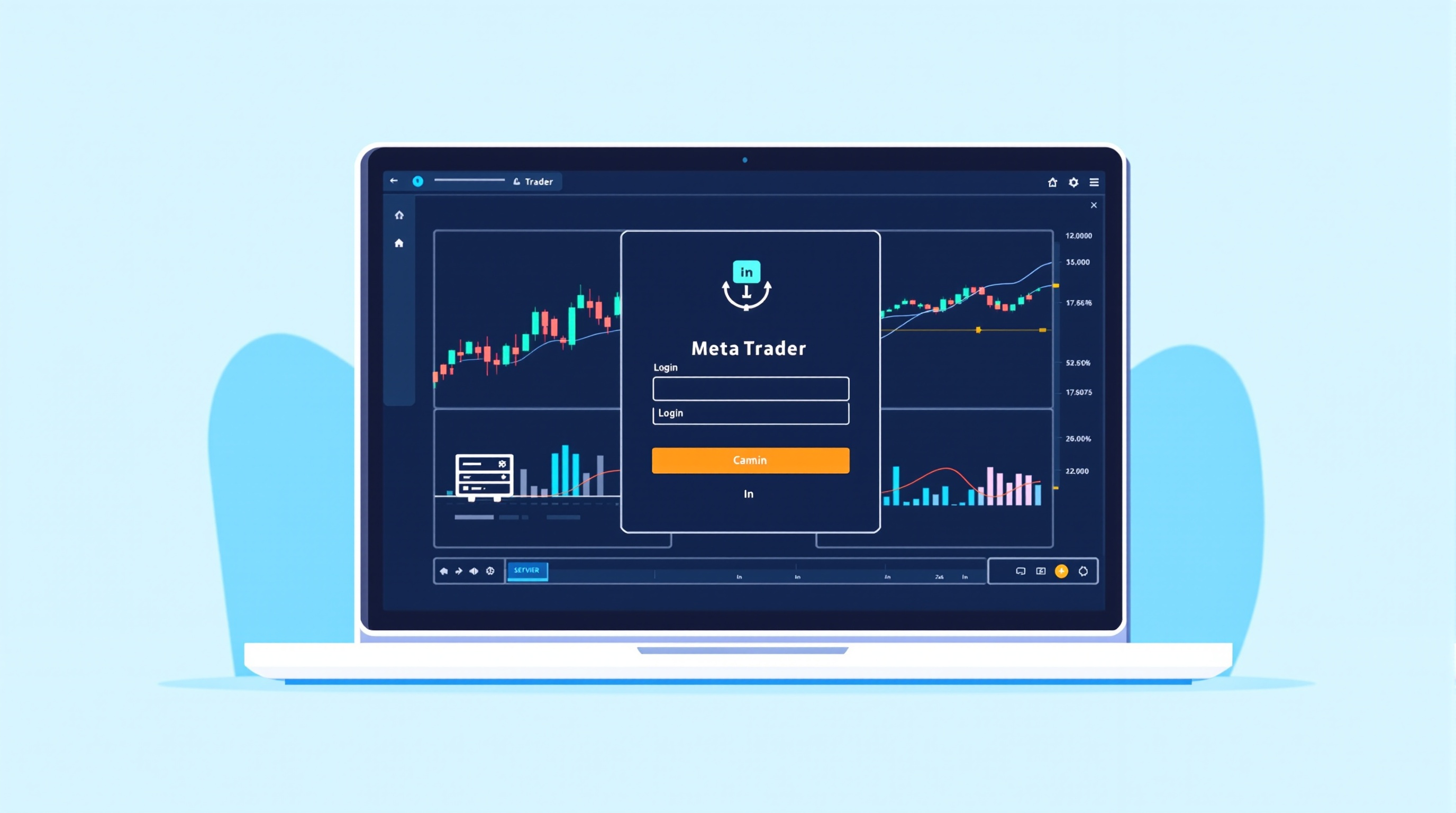
Connecting MetaTrader 4 to Forex.com and City Index (UK) is mostly a case of getting the right server details and login credentials in the right boxes — but both brokers have their own quirks worth knowing before you start. This guide walks through the practical steps, what to check first, and how to make sure the platform you end up trading on is actually costing you what you think it is.
Before You Connect: Confirm Platform and Account Type
Forex.com and City Index are both trading names under the StoneX group, and both are regulated in the UK. Regulatory status and platform availability can change, so before doing anything else:
- Check the broker's own website for current confirmation of MetaTrader 4 (and MT5, if relevant) availability — some brokers run MT4 alongside their own proprietary platform, and account types eligible for MetaTrader are sometimes distinct from their standard web-platform accounts.
- Confirm FCA regulation status directly on the FCA register, not just the broker's marketing page.
- Check which account type gives you MT4 access. Brokers sometimes gate MetaTrader behind a specific account tier (e.g. a "classic" vs "direct market access" style account), and the underlying pricing model can differ between them.
- Note your maximum leverage. UK retail clients are capped at 30:1 on major FX pairs under FCA rules, regardless of which platform you connect through.
Doing this five-minute check first saves you opening an account, downloading MT4, and then discovering you needed a different account type all along.
Step-by-Step: Connecting MT4 to Forex.com
Once you've confirmed MT4 is available on your account type:
1. Open or log into your account on Forex.com's website and locate the MT4 section, usually under platform downloads or account settings. 2. Download the MT4 terminal — either the desktop app, or install it from the MetaTrader mobile app store listing. 3. Find your server name. Forex.com will show this in your account portal or in a welcome email — it typically follows a pattern like a shortened form of the broker name plus a region or account-type tag. 4. Open MT4 → File → Login to Trade Account, then enter: - Login (account number) - Password - Server (exactly as shown — copy-paste to avoid typos) 5. Test connectivity by opening a chart and checking the price feed updates and the terminal shows "connected" in the bottom-right corner, not "no connection."
If the server doesn't appear in MT4's default server list, you can add it manually via the login window's server dropdown by typing the exact server string provided by Forex.com.
Step-by-Step: Connecting MT4 to City Index
City Index's onboarding for MetaTrader follows a similar pattern, with a couple of differences worth flagging:
1. Confirm with City Index directly whether MT4 sits alongside their own platform for your account type, since this has varied over time. 2. Get your MT4 login credentials from your account dashboard or welcome documentation — these are separate from your City Index web-platform login. 3. Download and install MT4, then log in using File → Login to Trade Account as above. 4. Match the server name precisely. City Index's MT4 server string is broker-specific and won't be the same as Forex.com's, even though both sit under the same corporate group — never assume they're interchangeable. 5. Check your instrument list loads correctly in the Market Watch window; if symbols are missing, right-click and "Show All," or contact support to confirm symbol naming conventions (some brokers append suffixes to FX pairs).
Common Connection Problems and Fixes
| Problem | Likely Cause | Fix | |---|---|---| | "No connection" message | Wrong server name | Re-check server string from broker portal, retype exactly | | Login rejected | Wrong account type / demo vs live mismatch | Confirm you're using live MT4 credentials, not web-platform login | | Missing symbols | Market Watch filtered | Right-click → Show All, or ask support for the symbol list | | Frequent disconnects | Firewall/antivirus blocking MT4 | Whitelist the MT4 .exe in your firewall settings | | Old prices / frozen chart | Wrong server or maintenance window | Check broker status page, confirm correct server for your account |
If none of this resolves it, contact the broker's support directly — they can confirm your exact server and account status faster than trial and error.
Checking the Real Cost of Trading Through MT4
Getting connected is the easy part. The number that actually affects your results is the all-in cost of trading — spread plus commission (if any) plus any financing/swap charges if you hold positions overnight. This can vary by account type even within the same broker, and MT4 itself doesn't always make the full cost picture obvious on the dealing ticket.
Before committing real capital:
- Use PipTax's cost tool at [/audit.html](/audit.html) to model your actual expected costs based on your typical trade size, holding period and instruments.
- Compare account types within the same broker, not just across brokers — MT4 accounts sometimes carry different spread/commission structures than the broker's own platform.
- Check the /brokers/index.html page for a broader view of FCA-regulated brokers offering MetaTrader, so you're comparing like-for-like regulatory status.
- Re-run the comparison periodically — broker pricing and account structures do change.
Never take a headline "low spread" claim at face value without checking the account type and instrument it applies to.
Setting Up Charts and EAs After Connecting
Once logged in, a few housekeeping steps make MT4 usable day-to-day:
- Save a template with your preferred indicators and chart layout so new charts inherit it automatically.
- Enable AutoTrading (top toolbar button) only when you intend to run an Expert Advisor — leave it off otherwise to avoid accidental automated trades.
- Check EA permissions — some brokers restrict certain EA types or high-frequency strategies on their MT4 servers; check terms before deploying anything automated.
- Set up a demo account first if you're testing a new EA or unfamiliar broker server, so you can verify execution behaviour without risking capital.
- Confirm swap and rollover times shown in MT4's Market Watch (right-click a symbol → Specification) match what the broker states elsewhere — small platform-display discrepancies do happen.
Final Check: Is MT4 the Right Choice for You?
Connecting MT4 to Forex.com and City Index gives you access to a familiar, EA-friendly platform with a huge library of custom indicators and community support — but it's not the only option either broker may offer. Before settling on it long-term:
- Compare MT4's execution and cost structure against the broker's own proprietary platform, if available.
- Revisit /school/index.html if you're new to MetaTrader concepts like Expert Advisors, templates, or order types.
- Use /methodology.html to understand how PipTax evaluates broker cost data, so you know what's being compared when you check /rates.html.
Trading carries risk of loss, and no platform connection changes that — the goal here is simply making sure your setup is accurate, stable, and cost-transparent before you trade.
Key takeaways
- Confirm MT4 availability and account type on Forex.com and City Index's own sites before opening an account, as platform access can vary by account tier
- Both brokers are part of the StoneX group but use separate MT4 server strings — never assume they're interchangeable
- Most connection failures come down to wrong server names or mismatched login credentials
- UK retail traders are capped at 30:1 leverage on major FX pairs under FCA rules, regardless of platform
- Use PipTax's cost tool at /audit.html to check real all-in trading costs before committing capital, since MT4 accounts can price differently to a broker's own platform
- Test any Expert Advisor on a demo account first to verify execution behaviour on the specific broker server
Frequently asked questions
- Do Forex.com and City Index both offer MetaTrader 4?
- Both have offered MT4 historically, but platform availability can change by account type and over time. Always confirm current MT4 access directly on each broker's website before opening an account.
- Can I use the same MT4 login for both Forex.com and City Index?
- No. Even though both brokers sit under the same corporate group (StoneX), they issue separate account logins and separate MT4 server strings. You'll need distinct credentials for each.
- Why does MT4 say 'no connection' after I log in?
- This is almost always a wrong or mistyped server name. Copy the server string exactly as shown in your account portal rather than retyping it, and check it against the correct broker.
- Is the spread the same on MT4 as on the broker's own platform?
- Not necessarily. Some brokers price MT4 accounts differently to their proprietary platform accounts. Check both the account terms and PipTax's cost tool at /audit.html before assuming costs are identical.
- What leverage will I get trading FX pairs via MT4 with a UK broker?
- FCA rules cap retail leverage at 30:1 on major currency pairs, and this applies regardless of whether you trade through MT4 or a broker's own platform.
- Can I run an Expert Advisor on Forex.com or City Index's MT4 server?
- Many MT4 servers support EAs, but some brokers restrict certain strategy types (e.g. high-frequency or latency arbitrage). Check the broker's terms and test on a demo account before deploying an EA live.