How to Connect MetaTrader 5 to ThinkMarkets UK
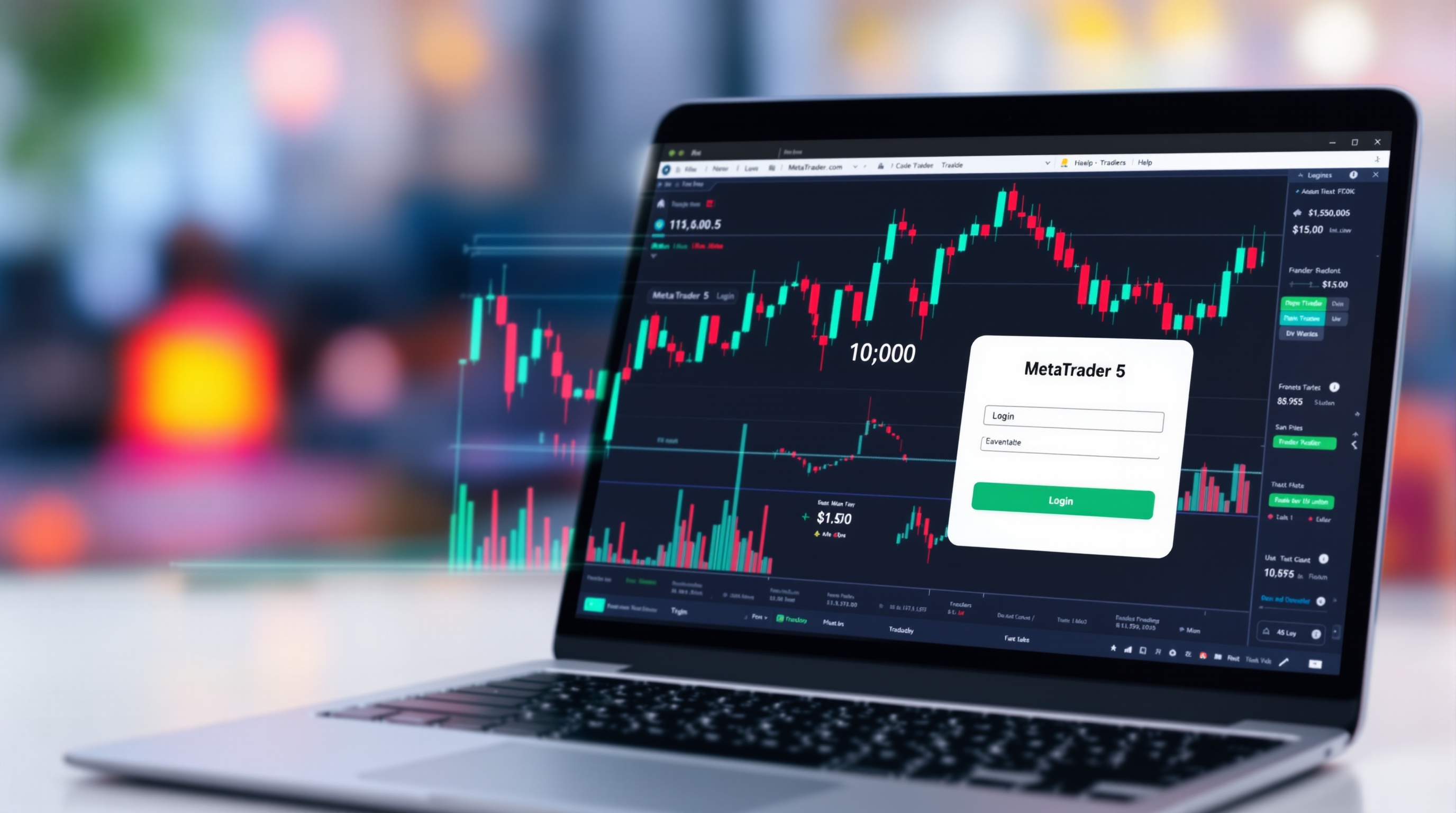
If you want to connect MetaTrader 5 to ThinkMarkets UK, the process is mostly the same as linking MT5 to any other broker — the main things to get right are your account credentials, the exact server name, and confirming your account type actually runs on MT5 in the first place. This guide walks through the setup step by step, plus what to check before you fund the account.
Before You Start: Confirm MT5 Is Available on Your Account
Not every broker offers MT5 across every account type, and platform availability can change by region or account tier. Before downloading anything:
- Check ThinkMarkets' own website for the current list of supported platforms per account type.
- Ask support directly if you're unsure whether your specific account (standard, raw spread, professional, etc.) runs on MT5, MT4, or both.
- Confirm your entity — UK clients should be dealing with the FCA-regulated ThinkMarkets entity, not an offshore one, if UK regulatory protections matter to you.
This matters because MT4 and MT5 are separate platforms with separate login credentials and separate servers. Downloading the wrong one, or assuming your account works with a platform it doesn't support, is the most common reason people get stuck at step one.
Once you've confirmed MT5 is live on your account, you're ready for the actual setup.
Step-by-Step: Connecting MetaTrader 5 to ThinkMarkets UK
1. Open or log into your ThinkMarkets client portal. This is where your account number, password, and server details usually live. 2. Download MetaTrader 5 from the official MetaQuotes site, the ThinkMarkets website, or your phone/tablet's app store — avoid third-party download links. 3. Locate your MT5 login details. You'll need three things: your account number (login), your password (and separately, an investor/read-only password if you want one), and the server name — something ThinkMarkets will specify, not a generic MetaQuotes demo server. 4. Open MT5 and go to File > Login to Trade Account (or use the "Open an Account" wizard if it's your first time). 5. Search for the ThinkMarkets server by typing "ThinkMarkets" in the server search box within MT5. Select the correct live or demo server as shown in your welcome email. 6. Enter your login and password, tick "save password" if it's your own secure device, and hit connect. 7. Confirm connection — you should see live prices ticking in the Market Watch window and your account balance appear in the Terminal window.
If MT5 can't find a ThinkMarkets server automatically, you can add it manually via the server name string ThinkMarkets provides, entered exactly as given — typos here are a common sticking point.
Live Account vs Demo Account Setup
The connection steps are identical whether you're using a demo or live account — the difference is simply which credentials and server you use.
- Demo accounts let you test the platform, your EAs, and your workflow with no real money at risk. Useful for confirming the MT5 connection works before you fund anything.
- Live accounts connect to your actual trading capital and require you to have passed ThinkMarkets' account verification (ID, proof of address, etc.) as part of FCA-regulated onboarding.
A sensible sequence: set up the demo first, confirm everything connects and behaves as expected, then repeat the exact same steps with your live credentials once you're ready to fund the account.
Checking Costs Before You Trade
Getting connected is the easy part — understanding what you'll actually pay to trade is where most people skip a step. Advertised spreads rarely tell the full story once you factor in commission structures, swap rates on overnight positions, and execution quality during volatile periods.
Rather than take any broker's marketing page at face value:
- Use PipTax's cost tool at /audit.html to get a realistic, all-in cost estimate based on your typical trade size and holding period.
- Compare that figure against other FCA-regulated brokers offering MetaTrader, such as Pepperstone or IG, both of which are also UK-accessible and worth benchmarking against.
- Check /brokers/index.html for a broader comparison of broker cost structures and regulatory status.
This step matters more than which platform icon sits on your desktop — the platform doesn't determine your costs, the broker's pricing model does.
FCA Regulation and Leverage on UK Accounts
If you're trading with ThinkMarkets' UK entity, you're operating under FCA rules, which include a leverage cap of 30:1 on major forex pairs for retail clients. This is a standard UK/EU retail protection, not something unique to ThinkMarkets — Pepperstone and IG's UK entities operate under the same cap for retail accounts.
A few things worth confirming directly with ThinkMarkets:
- Which entity your account actually sits under (this affects your regulatory protections).
- Whether you qualify for, or want to apply for, professional client status, which removes the leverage cap but also removes some retail protections.
- How negative balance protection and segregated client funds work on your specific account.
None of this is guesswork you should do yourself from a blog post — check it against ThinkMarkets' own terms and the FCA register.
Running EAs and Automated Strategies
If your plan involves Expert Advisors, connecting MT5 is only half the job — you also need to confirm:
- EA permissions on your account type (some accounts restrict or condition automated trading).
- Execution model — market execution vs other models can materially change how an EA performs in live conditions versus backtests.
- VPS needs — if your EA needs to run 24/5 without interruption, a VPS avoids the risk of your home connection dropping mid-trade.
Test any EA thoroughly on a demo connection first, using the exact server and account type you intend to trade live, since execution quirks don't always show up in strategy tester results.
Final Checks and Next Steps
Once you connect MetaTrader 5 to ThinkMarkets UK, the setup itself is largely "set and forget" — the real ongoing work is monitoring costs, execution quality, and whether the account still suits your strategy as it evolves. Recheck your connection after any major MT5 update, and revisit your cost comparison periodically using /audit.html, since spreads and conditions shift over time. For a deeper look at how execution and pricing models actually affect your bottom line, PipTax's /methodology.html and /school/index.html are good next stops.
Key takeaways
- To connect MetaTrader 5 to ThinkMarkets UK, you need a live or demo account, your account login/password, and the correct MT5 server name from ThinkMarkets' client portal or welcome email.
- Always confirm on ThinkMarkets' own site whether your specific account type runs on MT5, MT4, or both — platform availability can vary by account and region.
- ThinkMarkets UK clients trading major FX pairs fall under FCA rules, which cap retail leverage at 30:1 — check your exact terms before you fund the account.
- Use PipTax's cost tool at /audit.html to see live, all-in trading costs before committing real capital, rather than relying on marketing claims.
- EA and automated trading support depends on account type and platform build — verify VPS and EA permissions with ThinkMarkets support before deploying bots.
- A clean MT5 connection means correct server, correct login type (live vs demo), and a stable internet or VPS connection for uninterrupted trading.
Frequently asked questions
- Does ThinkMarkets UK support MetaTrader 5?
- ThinkMarkets has offered MetaTrader platforms to its clients, but exact platform availability can depend on your account type and region. Always confirm on ThinkMarkets' own website, or with their support team, whether MT5 is available for your specific account before you open one.
- Is ThinkMarkets UK regulated by the FCA?
- ThinkMarkets operates a UK entity regulated by the Financial Conduct Authority for UK-based clients. FCA-regulated retail forex accounts are subject to a leverage cap of 30:1 on major currency pairs. Confirm your entity and regulatory status directly on ThinkMarkets' site, since brokers sometimes offer accounts under different regulated entities depending on where you live.
- Where do I find my MT5 server name for ThinkMarkets?
- Your MT5 server name is usually sent in your account welcome email or shown in the ThinkMarkets client portal alongside your login and investor password. If you can't find it, log into your portal or contact ThinkMarkets support directly rather than guessing.
- Can I run expert advisors (EAs) on my ThinkMarkets MT5 account?
- Many MT5 accounts support automated trading via EAs, but permissions and execution conditions can vary. Check with ThinkMarkets whether EAs are permitted on your account type, and consider a VPS for uninterrupted uptime if you plan to run bots continuously.
- How do I know if ThinkMarkets' costs are competitive?
- Rather than relying on advertised spreads, use PipTax's cost tool at /audit.html to compare live, all-in costs — spread plus commission plus swap where relevant — against other FCA-regulated brokers like Pepperstone or IG. This gives you a real picture based on your typical trade size and holding period.
- What's the difference between MT4 and MT5 for ThinkMarkets clients?
- MT5 generally offers more timeframes, an additional order type, and a built-in economic calendar compared to MT4, though both run Expert Advisors. If ThinkMarkets offers both, your choice should come down to which platform your strategy and any EAs you use were actually built for.