How to Connect MetaTrader 5 to Pepperstone in the UK
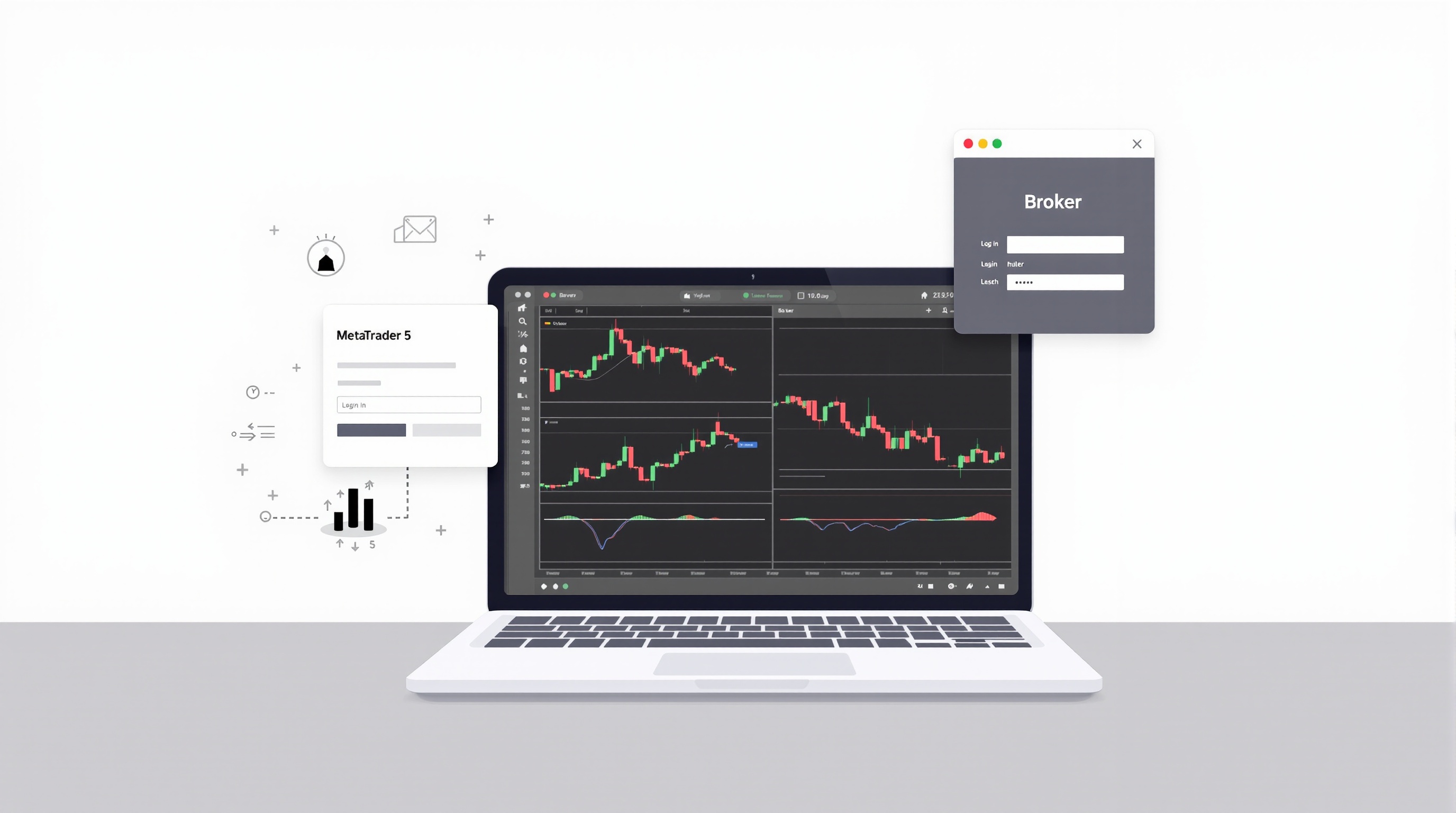
If you want to connect MetaTrader 5 to Pepperstone, the process is largely the same as linking MT5 to any other broker: open an account, download the platform, and enter three pieces of login information. This guide walks through each step in order, plus the checks worth doing before you trade live.
Before You Start: What You Need From Pepperstone
Before touching MetaTrader 5, get your account set up on Pepperstone's side. You'll need:
- An open Pepperstone account — demo or live, both work the same way for connection purposes.
- Your MT5 login number — a numeric account ID sent by email once the account is created.
- Your password — Pepperstone issues a trading password (and sometimes an investor/read-only password separately).
- The exact server name — something like a regional MT5 server label, unique to your account type and entity.
All of this normally arrives in a welcome email straight after account creation. If you can't find it, log into Pepperstone's client portal rather than guessing — a mistyped server name is the single most common reason MT5 fails to connect.
Important: Pepperstone is FCA-regulated for UK-based clients, which means retail leverage on major FX pairs is legally capped at 30:1. Platform availability (MT4 vs MT5) and specific account types can change, so confirm what's currently on offer directly on Pepperstone's site, or scan PipTax's [brokers page](/brokers/index.html) for a quick overview before you commit.
Downloading and Installing MetaTrader 5
Once your account details are in hand, get the platform itself:
1. Download MT5 from the official MetaTrader website or directly from Pepperstone's platform page — either source gives you the same core software. 2. Run the installer and let it complete; no custom settings are usually needed for a standard install. 3. Launch MT5. On first open, it may prompt you to open a demo account with a random broker — skip or cancel this, since you already have a Pepperstone account to connect.
MT5 is available on Windows, macOS (via a wrapper or native build depending on version), iOS, Android, and as a web platform. The desktop version is the most common starting point and the easiest to configure for Expert Advisors (EAs) later on.
Connecting MetaTrader 5 to Your Pepperstone Account
This is the core step:
1. In MT5, go to File > Login to Trade Account (or Open an Account if none exist yet in this terminal). 2. Enter your login number exactly as provided. 3. Enter your password. 4. In the server field, either type the exact server name from your welcome email or select it from the dropdown list — Pepperstone's servers are usually easy to spot once you start typing "Pepperstone." 5. Click Login. A successful connection shows live prices ticking in the Market Watch window within a few seconds.
If the terminal instead shows "no connection" in the bottom-right corner, re-check the server name first, then your internet connection, then whether your account is still active (demo accounts can expire after a set period of inactivity).
Setting Up Charts, Watchlists and Basic Preferences
With the connection live, spend ten minutes on setup before placing any trades:
- Market Watch: right-click and select "Show All" to see every instrument Pepperstone offers on that server, then hide what you don't need.
- Chart templates: build one clean template (timeframe, indicators, colour scheme) and save it, rather than rebuilding charts from scratch each session.
- One-click trading: available in MT5's chart toolbar if you want faster order entry — use with caution, since it removes a confirmation step.
- Notifications: enable push/email/sound alerts under Tools > Options if you trade away from the screen.
None of this affects your actual trading costs, but a tidy terminal reduces execution mistakes, which matter far more to your bottom line than most traders assume.
Checking Costs and Execution Before You Trade Live
Connecting the platform is the easy part; understanding what you're actually paying is where most traders lose money without realising it. Spreads, commissions and swap rates on Pepperstone (and any broker) vary by account type, instrument and market conditions, and none of these figures should be assumed from memory or old screenshots.
- Run your typical pairs and trade sizes through PipTax's [cost tool](/audit.html) to see an honest, current breakdown of round-trip costs.
- Compare Pepperstone's execution model (market-maker vs ECN-style, if applicable to the account type) against other FCA-regulated MT5 brokers on the [brokers page](/brokers/index.html).
- Check current swap/rollover conditions on the [rates page](/rates.html) if you hold positions overnight.
Never treat a broker's advertised "from" spread as your actual cost — it's a starting point, not a guarantee.
Running Expert Advisors (EAs) on Pepperstone's MT5
If your reason for connecting MT5 to Pepperstone is automated trading, a few extra checks matter:
- VPS support: confirm whether Pepperstone offers or supports a VPS for EA uptime, since a dropped connection can leave orders unmanaged.
- Allowed order types: some EAs rely on hedging or specific order behaviours — check these are supported on your account type.
- Margin and leverage: remember the FCA's 30:1 cap on major pairs applies to retail accounts, which changes position sizing math for any EA built around higher leverage assumptions.
- Backtest realism: MT5's Strategy Tester is only as good as its data; always forward-test on demo before going live.
For a structured walkthrough of EA basics and risk controls, PipTax's [school section](/school/index.html) is a good next stop.
Final Checks Before Going Live
Once MT5 is connected to Pepperstone and your charts are set up, run through this short checklist before funding a live account or switching from demo:
- [ ] Confirmed FCA regulatory status directly with Pepperstone or the FCA register
- [ ] Checked current spreads/commissions via the cost tool
- [ ] Verified leverage settings match the 30:1 retail cap on majors
- [ ] Tested order execution on demo with your actual strategy
- [ ] Saved your server name and login details somewhere secure
Learning how to connect MetaTrader 5 to Pepperstone takes minutes; understanding the real cost and risk of trading on that connection takes a bit more homework — but it's the part that actually protects your account balance. Trading forex carries real risk of loss, and no setup guide changes that fact, so verify everything current on Pepperstone's own site before you trade with real money.
Key takeaways
- To connect MetaTrader 5 to Pepperstone you need a funded or demo trading account, your MT5 login/password, and the correct Pepperstone server name.
- Pepperstone is FCA-regulated for UK clients, which means retail FX leverage is capped at 30:1 on major pairs by law.
- Always confirm current platform availability, spreads and commissions on Pepperstone's own site and via PipTax's cost tool before funding an account.
- Server details differ between demo and live accounts, and between Razor/Standard-style account types, so copy the exact server name from your welcome email.
- If you plan to run an EA, check VPS support, allowed order types and margin requirements before going live.
- Use PipTax's broker comparison page to see how Pepperstone's execution model and costs stack up against other FCA-regulated MT5 brokers.
Frequently asked questions
- Does Pepperstone offer MetaTrader 5 in the UK?
- Pepperstone has historically supported MetaTrader platforms for UK clients, but platform lineups can change. Confirm current MT5 availability directly on Pepperstone's website or via a quick check on PipTax's brokers page before opening an account.
- What details do I need to connect MetaTrader 5 to Pepperstone?
- You'll need your MT5 account login number, password (or investor password for read-only access), and the exact Pepperstone server name, which is emailed to you when the account is created.
- Can I use the same MT5 terminal for a demo and a live Pepperstone account?
- Yes. One MT5 terminal can hold multiple accounts; just add each account separately via File > Open an Account or File > Login to Trade Account, selecting the correct server each time.
- Why won't my MT5 terminal connect to the Pepperstone server?
- Common causes are a mistyped server name, an expired demo account, a firewall blocking the connection, or entering the investor password instead of the trading password. Double-check the welcome email and your firewall settings first.
- Is Pepperstone regulated for UK traders?
- Pepperstone operates under FCA regulation for UK clients, meaning retail forex leverage on major currency pairs is capped at 30:1 by FCA rules. Always verify current regulatory status on the FCA register and Pepperstone's own disclosures.
- Should I check costs before connecting my account?
- Yes. Spreads, commissions and swap rates change and vary by account type, so run your expected trading pairs and volumes through PipTax's cost tool at /audit.html before committing real funds.