How to Connect MetaTrader 5 to Global Prime UK
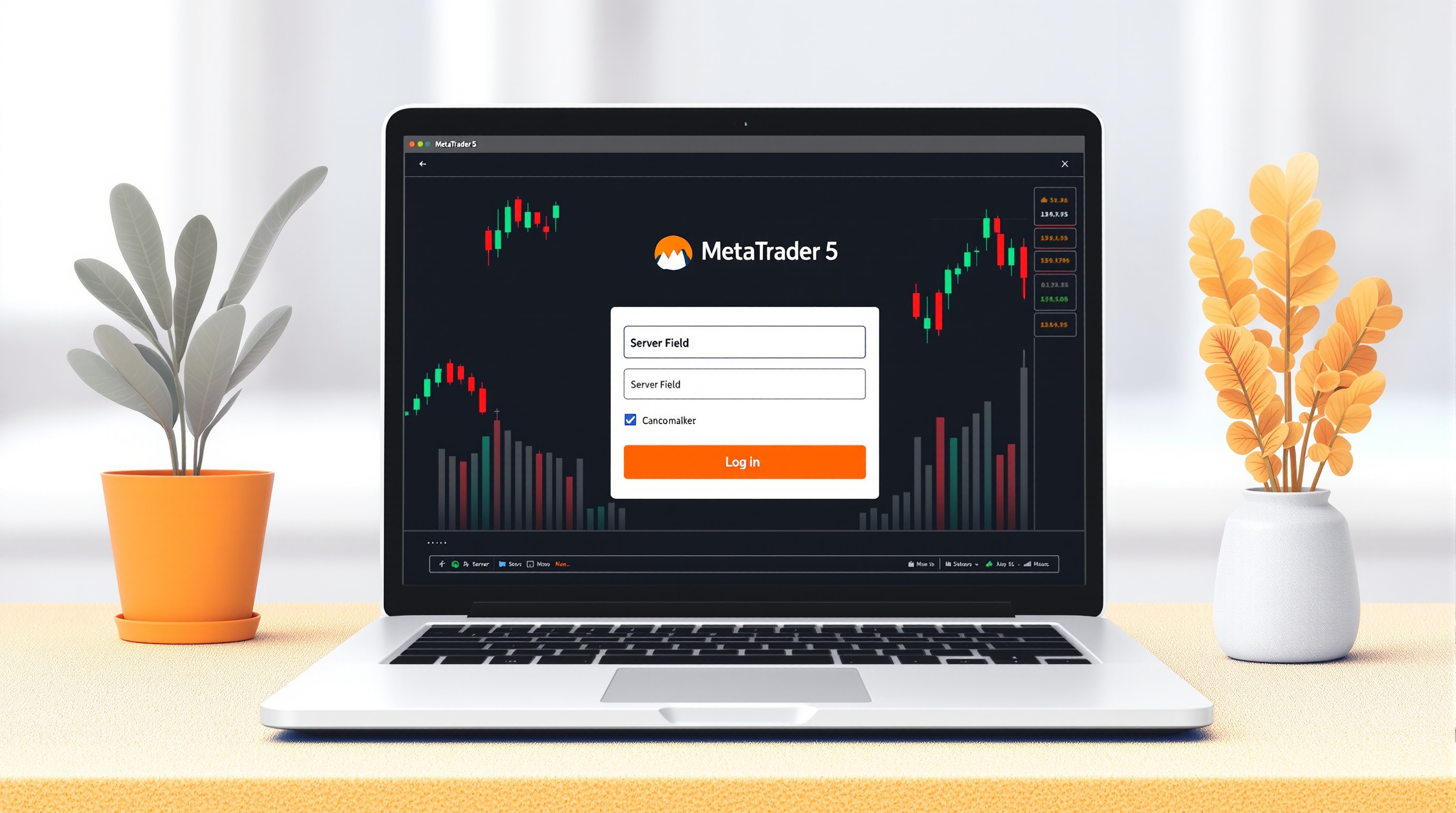
If you want to connect MetaTrader 5 to Global Prime UK, the process is largely the same as connecting MT5 to any regulated broker: download the platform, get your account's server details, and log in. This guide walks through each step, flags the mistakes that trip up most traders, and explains why the login screen is only step one — the real work is checking whether the account is actually cost-competitive once you're in.
Before You Start: Confirm Platform Availability with Global Prime UK
Broker platform offerings change over time, and account types within the same broker sometimes run on different servers or even different platforms entirely. Before you build any workflow around MetaTrader 5:
- Check Global Prime's own UK-facing site for current platform options (MT4, MT5, or both)
- Ask support directly which platform your specific account type uses — this avoids wasted setup time
- Confirm FCA regulation status for the entity you'll be opening an account with, since UK retail protections (including the 30:1 leverage cap on major FX pairs) only apply under FCA oversight
- Note your account currency and base region, as these often determine which server cluster you'll connect to
Don't assume — a five-minute email or live chat check now saves a frustrating login error later. This is also the point to decide whether you're opening a live or demo account first; demo is the sensible starting point if you've never used MT5 before or you're testing a new EA.
Downloading and Installing MetaTrader 5
MT5 is free and available directly from MetaQuotes or via a broker-branded download link. Either version connects to the same broker servers — the branded installer just pre-fills some settings.
1. Go to the MetaTrader 5 download page (via MetaQuotes.net or the link Global Prime UK provides) 2. Choose the installer for your device — Windows, macOS, or the mobile apps for iOS/Android 3. Run the installer and let it complete; no broker details are needed at this stage 4. Open MT5 — it will launch with a default demo server list, which you'll replace with your broker's own server
If you're on macOS or Linux, you may need a wrapper or virtual machine, since MT5's native build is Windows-first. Check compatibility notes on the download page if this applies to you.
Getting Your Login Credentials and Server Name
Once your Global Prime UK account is approved (live or demo), you should receive:
- Login number — a numeric account ID
- Password — usually a temporary one you'll be prompted to change
- Investor password (optional) — read-only access, useful for monitoring without trading rights
- Server name — the specific MT5 server string for your account (e.g. something like *BrokerName-Live* or *BrokerName-Demo*, though exact naming is broker-specific)
This information typically arrives by email or sits in your client portal after account opening. Copy the server name exactly — it's the single most common source of connection failures, because brokers often run multiple similarly-named servers for different regions or account types.
Connecting MetaTrader 5 to Your Account
With MT5 open:
1. Go to File > Login to Trade Account 2. If your broker's server isn't listed, click Scan or manually type the server name provided 3. Enter your login number and password 4. Tick Save password if you want MT5 to remember it on this device 5. Click OK/Login
If the connection succeeds, you'll see live prices update in the Market Watch window and your account balance appear in the bottom Terminal panel. If it fails, the terminal will show a "no connection" or "invalid account" message — check the troubleshooting section below before contacting support.
Troubleshooting Common Connection Problems
Most MT5-to-broker connection issues fall into a handful of categories:
| Problem | Likely Cause | Fix | |---|---|---| | "Invalid account" error | Wrong login or password | Re-check credentials, reset password via broker portal | | Server not found | Server name mistyped or not yet added | Manually add server exactly as given by broker | | Connects then disconnects | Firewall/antivirus blocking MT5 | Whitelist MT5 in firewall settings | | No live prices | Account not yet activated, or market closed | Confirm activation status; check trading hours | | Can't find broker in server list | Using generic MT5 download without broker's server pre-loaded | Add server manually via login window |
If none of these resolve it, it's worth checking that Global Prime UK has fully verified and funded (if live) your account — connection issues sometimes stem from account status rather than the platform itself.
After You Connect: Check the Real Cost of Trading
Getting logged in is the easy part. The number that actually affects your bottom line is the all-in cost of trading — spread, commission, and swap combined — and that varies by broker, account type, and instrument. Once you're connected:
- Open a chart for your main instrument and check the spread shown in Market Watch
- Look up your account's commission structure (if any) in your client portal or account agreement
- Check swap rates for any pair you plan to hold overnight, shown by right-clicking a symbol and viewing Specification
- Run these figures through PipTax's cost tool at /audit.html to see how they stack up against other FCA-regulated brokers
Don't take marketing claims about "tight spreads" at face value — verify them yourself once live prices are streaming into your terminal.
Final Checklist Before You Trade Live
Before moving real money through your MT5-Global Prime UK connection:
- Confirm the account is FCA-regulated if UK protections matter to you
- Remember the 30:1 leverage cap on major FX pairs applies to FCA retail accounts
- Test your EA or indicators on demo first if you plan to automate anything
- Compare the account's real costs using PipTax's cost tool and the broader brokers directory at /brokers/index.html
- Review basic platform mechanics in PipTax's school at /school/index.html if MT5 is new to you
Connecting MetaTrader 5 to Global Prime UK is a mechanical process — download, get credentials, log in — but the decision to trade live should rest on more than a successful login. Regulation status, execution quality, and real all-in cost matter far more than how smoothly the platform connects, so treat this guide as step one, not the whole job.
Key takeaways
- Connecting MetaTrader 5 to any broker, including Global Prime UK, follows the same basic pattern: download MT5, get your server and login details, then connect via 'File > Login to Trade Account'
- Always confirm directly with Global Prime UK whether your account type runs on MT5 (rather than MT4) before you build a workflow around it
- Your MT5 server name is unique to your account type and region — using the wrong one is the most common connection error
- FCA-regulated brokers cap retail leverage at 30:1 on major FX pairs, which affects your margin calculations from day one
- Never judge a broker on the login screen alone — use PipTax's cost tool at /audit.html to see the real all-in cost of trading before funding an account
- Test the connection with a demo login first, especially if you plan to run an EA or copy trading through MT5
Frequently asked questions
- Does Global Prime UK offer MetaTrader 5?
- Global Prime has historically been known for MetaTrader 4, and platform availability can change or vary by entity and account type. Always confirm current platform options — MT4, MT5, or both — directly on Global Prime's UK site or with their support team before you set up an account around a specific platform.
- What details do I need to connect MetaTrader 5 to a broker?
- You'll need the MT5 login number, password (investor or trading), and the exact server name your broker assigns to your account. These are usually emailed to you after account approval or shown in your client portal — copy them exactly, as server names are case-sensitive and often have multiple similar-looking variants (live, demo, different regions).
- Why does MetaTrader 5 say it can't connect to my broker's server?
- The most common causes are: an incorrect or mistyped server name, a firewall or VPN blocking the connection, or trying to log in before your account has been fully activated by the broker. Try re-adding the server manually via 'File > Open an Account > Login to an existing account' and double-check the server list matches what your broker gave you.
- Is MetaTrader 5 better than MetaTrader 4 for UK traders?
- MT5 generally offers more order types, an extra timeframe set, and a built-in economic calendar, while MT4 remains popular for its simpler interface and huge EA/library base. Neither is inherently 'better' — the right choice depends on which platform your broker supports well and which one your strategy or EAs are built for.
- How do I know if Global Prime UK is right for my trading style?
- Platform support is just one factor. You also need to check FCA regulation status, execution model (ECN/STP vs market maker), typical spreads and commissions for your instruments, and swap costs if you hold positions overnight. Run the numbers through PipTax's cost tool at /audit.html and compare against other brokers on /brokers/index.html rather than relying on marketing claims.