How to Connect MetaTrader 4 to FXTM UK
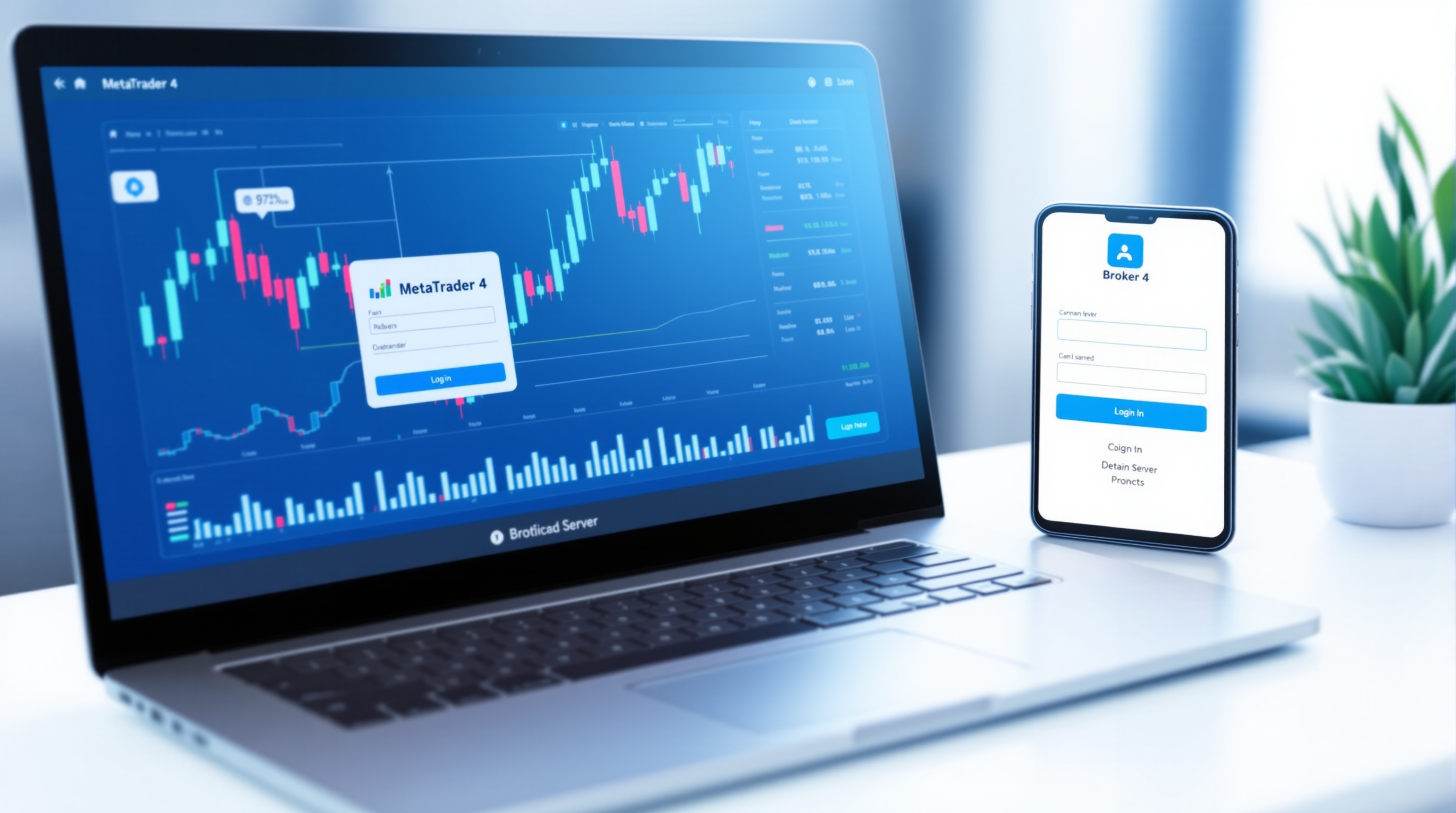
If you want to connect MetaTrader 4 to FXTM UK, the process is straightforward once you know the order of steps: open the right account type, get your server credentials, download the platform, and log in. This guide walks through each stage and flags the bits traders usually get wrong, like picking the wrong server or forgetting to check FCA status before funding an account.
Why FXTM and MT4 UK Traders Need to Check First
FXTM (ForexTime) operates under several regulatory entities globally, and only some of them cover UK retail clients. Before you do anything else:
- Confirm which FXTM entity you're opening an account with — the UK-facing entity should be the one regulated by the Financial Conduct Authority (FCA). Check the FCA register directly using the firm's reference number, not just a badge on the website.
- Confirm MT4 (not just MT5) is actually offered on the account type you're opening. Broker platform availability changes over time, so verify on FXTM's own site before you build a setup around it.
- Check leverage caps. UK retail clients trading major FX pairs are capped at 30:1 under FCA rules, regardless of what non-UK entities of the same broker advertise elsewhere.
This upfront check matters more than the download itself — connecting to the wrong server, or an unregulated offshore entity, is a bigger risk than any technical hiccup with MT4.
Step 1: Open Your FXTM Account and Get Server Details
Once you've confirmed you're opening the FCA-regulated UK entity:
1. Complete FXTM's online application (identity verification, address proof, appropriateness questions).
2. Choose your account type and base currency.
3. After approval, FXTM will email your MT4 login credentials — this includes your account number, password, and crucially, the server name (something like FXTM-UK-Live or FXTM-Demo, though exact naming varies).
4. Fund the account only after you're confident about the entity and costs — use PipTax's [cost tool](/audit.html) first to model spreads, commissions and swaps against your typical trade size.
Keep this email safe. The server name is the one detail people lose track of, and without it MT4 can't find your account on FXTM's infrastructure.
Step 2: Download and Install MetaTrader 4
MT4 is free and available directly from FXTM's website or the official MetaQuotes download.
- Desktop (Windows/Mac): download the installer, run it, and let it complete setup. No account details are needed at this stage — installation is generic.
- Mobile (iOS/Android): download "MetaTrader 4" from the App Store or Google Play. Avoid look-alike apps — check the publisher is MetaQuotes.
- Web platform: some brokers offer a browser-based MT4; check if FXTM supports this if you'd rather skip installation entirely.
Once installed, don't log in yet with random demo servers — you'll add FXTM's specific server next.
Step 3: Add the FXTM Server and Log In
This is the step that trips people up most often.
1. Open MT4 and go to File > Login to Trade Account. 2. If FXTM's server isn't listed by default, click "Add new broker" or use the search box and type "FXTM" — MT4 pulls from an online broker list, so an internet connection is required. 3. Enter your login (account number), password, and select the exact server from your welcome email — live and demo servers look similar but are not interchangeable. 4. Click Login. A green signal icon in the bottom-right corner confirms a live connection to FXTM's trade server.
If login fails, the most common causes are: wrong server selected, password typed with autocorrect/whitespace, or the account not yet fully activated on FXTM's side — check your email for any pending verification steps.
Step 4: Verify Your Connection and Trading Environment
Before placing any trade:
- Check the Market Watch window shows live, updating prices for major pairs — a frozen feed usually means server mismatch or connectivity issues.
- Open a demo chart alongside your live one temporarily to compare spread behaviour during the same market session.
- Confirm your account currency, leverage, and margin requirements shown in MT4 match what you expected when you opened the account.
- Test a small trade in a demo environment first if you're new to MT4's order execution, especially one-click trading settings which can be toggled on accidentally.
Understanding FXTM's Real Trading Costs on MT4
Connecting to the platform is the easy part — understanding what a trade actually costs you is where most traders lose money without realising it. MT4 shows you the spread on screen, but that's only part of the picture:
| Cost component | Where to check it | |---|---| | Spread (variable/fixed) | Live in MT4 Market Watch, but varies by session | | Commission (if any) | Account type terms on FXTM's site | | Swap/rollover | MT4 "Swap Long/Short" columns per instrument | | Slippage on execution | Only visible through your own trade history over time |
Rather than guessing, run your typical instrument and trade size through PipTax's [cost impact tool](/cost-impact.html) and [audit tool](/audit.html) — these model the all-in cost of a trade so you're not comparing headline spreads in isolation. It's worth doing this for FXTM alongside other FCA brokers like Pepperstone or IG, since account types and execution models differ even when both offer MT4.
Common Connection Problems and Fixes
A short troubleshooting list before you contact support:
- "Invalid account" error: double-check you're not mixing up demo and live account numbers.
- No server found in search: manually add the server using the exact hostname/port from your welcome email (Tools > Options > Server tab in some MT4 builds).
- Connected but no prices moving: check your broker's market hours — FX markets close over weekends, and some instruments have limited trading hours.
- EA/indicator not loading after reconnect: re-attach expert advisors to charts after any fresh login; MT4 doesn't always restore them automatically.
- Repeated disconnects: check firewall/antivirus isn't blocking MT4's network access, common on restrictive office or public Wi-Fi.
For anything regulatory (account verification, entity confusion, fund withdrawal issues), contact FXTM support directly rather than troubleshooting on your own — platform issues and account/compliance issues are handled by different teams.
Final Checks Before You Trade Live
To recap the core workflow to connect MetaTrader 4 to FXTM UK: confirm the FCA-regulated entity, get your server credentials by email, install MT4, log in with the correct server selected, and verify live prices before trading. None of this replaces doing your own cost homework — use PipTax's [audit tool](/audit.html) and [brokers page](/brokers/index.html) to compare FXTM's real all-in costs against other FCA-regulated options before committing capital. Trading forex carries genuine risk of loss, and a smooth MT4 connection says nothing about whether the underlying costs or leverage suit your strategy — that's a separate check, every time.
Key takeaways
- Always confirm you're opening the FCA-regulated FXTM entity before funding an account, and verify MT4 availability directly on FXTM's site
- Your MT4 login requires three exact details from FXTM: account number, password, and server name — sent by email after approval
- UK retail leverage on major FX pairs is capped at 30:1 under FCA rules, regardless of what other FXTM entities advertise
- A successful MT4 connection tells you nothing about real trading costs — use PipTax's cost tool to model spread, commission and swap before trading live
- Common login failures are usually server mismatches or demo/live account mix-ups, not platform faults
- Re-attach EAs and indicators after every fresh MT4 login, as they don't always restore automatically
Frequently asked questions
- Does FXTM UK support MetaTrader 4?
- FXTM has historically offered MT4 alongside MT5, but platform availability can change by account type and region. Always confirm current MT4 support directly on FXTM's official site before opening an account around it.
- Is FXTM regulated by the FCA?
- FXTM operates multiple regulated entities globally. UK retail clients should confirm they are opening an account with the specific FXTM entity authorised and regulated by the FCA, checked via the FCA register using the firm's reference number, not just website badges.
- What server name do I use to log into MT4 with FXTM?
- Your exact server name (e.g. a live or demo server) is sent by FXTM in your account welcome email after approval. It varies by account type, so always use the one provided rather than guessing from generic lists.
- Why can't I find FXTM's server when searching in MT4?
- MT4 pulls its broker list from an online directory that requires an internet connection. If FXTM doesn't appear, you can usually add the server manually using the exact hostname from your welcome email.
- How do I check if FXTM's spreads and commissions are competitive?
- Don't rely on headline spread advertising alone. Use PipTax's cost tool at /audit.html to model the all-in cost, including spread, commission and swap, for your typical trade size and compare against other FCA-regulated brokers.
- Does UK leverage on FXTM differ from other regions?
- Yes. FCA rules cap retail leverage at 30:1 on major FX pairs for UK clients, regardless of higher leverage FXTM may offer under other, non-UK regulated entities.